

Met software voor externe toegang kun je vanaf elke locatie veilig verbinding maken met apparaten en deze bedienen, waardoor de afstand tussen verspreide teams en systemen op afstand wordt overbrugd. Als je leidinggeeft aan IT, moet je weten welke platforms de juiste combinatie bieden van beveiligingscontroles, streaming van hoge kwaliteit en praktische beheerfuncties.
Ontvang directe antwoorden over de beste software voor externe toegang in 2026—van compliance-tools op ondernemingsniveau tot betrouwbare keuzes voor desktopondersteuning—zodat je risico's kunt beperken, problemen kunt verminderen en je team vol vertrouwen de toegang kunt geven die het nodig heeft. Deze lijst leidt je langs de beste opties, zodat je volgende keuze duidelijk en praktisch uitvoerbaar is.
Waarom u onze softwareaanbevelingen kunt vertrouwen
6,700+
Reviews
20
Industry experts
16+
Evaluation factors
14
Years
Ons team test en beoordeelt software sinds 2012. Als technologieleiders weten we zelf hoe moeilijk — en belangrijk — het is om de juiste software te kiezen.
Voor deze gids hebben we tools geëvalueerd met behulp van praktijktests en onafhankelijk onderzoek, waarbij we tools beoordeeden aan de hand van onze selectiecriteria.
Onze reviews weerspiegelen ons menselijke redactionele oordeel, geen verkooppraatje.
Deskundige beoordelaars:
- Paulo Gardini MiguelTechnisch directeur
 Tim FisherVP AI
 Gabriel RosasTech Lead & software-architect
 Christhian GruhnTech Lead & platformarchitect

| Tool | Best For | Trial Info | Price | ||
|---|---|---|---|---|---|
| 1 | Best for automated patch management workflows | Free demo available | Pricing upon request | Website | |
| 2 | Best for self-hosted perpetual licensing | 15-day free trial | From $16.9/month (billed annually) | Website | |
| 3 | Best for multi-device desktop management at scale | 7-day free trial | From $1.84/month (billed annually) | Website | |
| 4 | Best for MSP technician speed and diagnostic tools | 14-day free trial + free demo available | Pricing upon request | Website | |
| 5 | Best for high-performance remote control at 4K quality | Free trial + free demo available | From $6/month | Website | |
| 6 | Best with AI-assisted IT diagnostics | 30-day free trial | From $24.9/month (billed annually) | Website | |
| 7 | Best for FIPS 140-2 compliant support | Free trial + free demo available | Pricing upon request | Website | |
| 8 | Best for FedRAMP-grade zero trust access | Free trial + free demo available | Pricing upon request | Website | |
| 9 | Best for session recording and auditing | 14-day free trial | From $33/month (billed annually) | Website | |
| 10 | Best for mass deployment call center support | Free 14-day free trial + free demo available | From $109/month (billed annually) | Website |


Beoordelingen van software voor externe toegang
Hieronder vind je mijn gedetailleerde samenvattingen van de beste software voor externe toegang die op mijn shortlist is gekomen. Mijn beoordelingen bieden een gedetailleerd overzicht van de functies, beste gebruikssituaties en mogelijkheden van elke software, zodat je de beste optie voor jou kunt vinden.
 Het meest geschikt voor geautomatiseerde workflows voor patchbeheer
- Gratis demo beschikbaar
- Prijs op aanvraag

Met Kaseya VSA kunt u met één klik sessies voor beheer op afstand starten op beheerde apparaten. Kaseya VSA is een cloudgebaseerd platform voor bewaking en beheer op afstand (RMM), ontwikkeld voor MSP's en interne IT-teams. Het omvat eindpuntbewaking, geautomatiseerd patchbeheer, beleidsgebaseerde taakautomatisering, ransomwaredetectie, beheer van mobiele apparaten en beveiligde toegang voor beheer op afstand.
Voor wie is Kaseya VSA het meest geschikt?
Kaseya VSA is zeer geschikt voor MSP's en interne IT-teams die grote aantallen eindpunten beheren en behoefte hebben aan beleidsgestuurd patchbeheer voor Windows, macOS en toepassingen van derden.
Waarom ik voor Kaseya VSA heb gekozen
Ik heb Kaseya VSA geselecteerd als een van de beste oplossingen, omdat het patchbeheer verder gaat dan eenvoudige planning. Met beleidsgebaseerd patchbeheer kunt u goedkeuringsregels, onderhoudsvensters en blokkeerperiodes instellen voor Windows, macOS, Linux en meer dan 300 toepassingen van derden vanuit één console. Wat ik echt nuttig vind, is de functionaliteit voor het overschrijven van patches, waarmee u specifieke problematische patches via een script kunt uitsluiten zonder de bredere workflow te verstoren. De RMM-agent implementeert patches bovendien zowel binnen als buiten het netwerk zonder afhankelijk te zijn van LAN-caches, zodat externe eindpunten actueel blijven zonder extra configuratie.
Belangrijkste functies van Kaseya VSA
- Beveiligde toegang voor beheer op afstand: Maak direct verbinding met elk eindpunt voor live ondersteuningssessies zonder interactie van de gebruiker of een VPN.
- Ransomwaredetectie en isolatie: Gedragsgebaseerde detectie plaatst geïnfecteerde eindpunten automatisch in quarantaine om bedreigingen in te dammen voordat ze zich verspreiden.
- Realtimebewaking en waarschuwingen: Bewaakt continu de status van eindpunten en start automatisch ticketcreatie en herstelacties wanneer zich problemen voordoen.
- Ontdekking en inventarisatie van IT-middelen: Ontdekt en inventariseert automatisch hardware, software, VM's, cloudinfrastructuur en IoT-apparaten in uw omgeving.
Integraties van Kaseya VSA
Kaseya VSA biedt native integraties met Autotask, IT Glue, ConnectWise, Acronis, Bitdefender, ESET, Webroot, Datto en Scalepad Lifecycle Manager. Er is een API beschikbaar voor aangepaste integraties.
Pros and Cons
Pros:
- Beleidsgebaseerde geautomatiseerde patchimplementatie
- Beveiligde sessies op afstand zonder VPN
- Ransomware-isolatie voor externe eindpunten
Cons:
- De interface kan verouderd en onoverzichtelijk aanvoelen
- Voor sommige functies voor beheer op afstand is installatie van een agent vereist
Learn more about Kaseya VSA: Het beste voor zelfgehoste licenties voor onbepaalde tijd
- 15 dagen gratis proefperiode
- Vanaf $16.9/maand (jaarlijks gefactureerd)
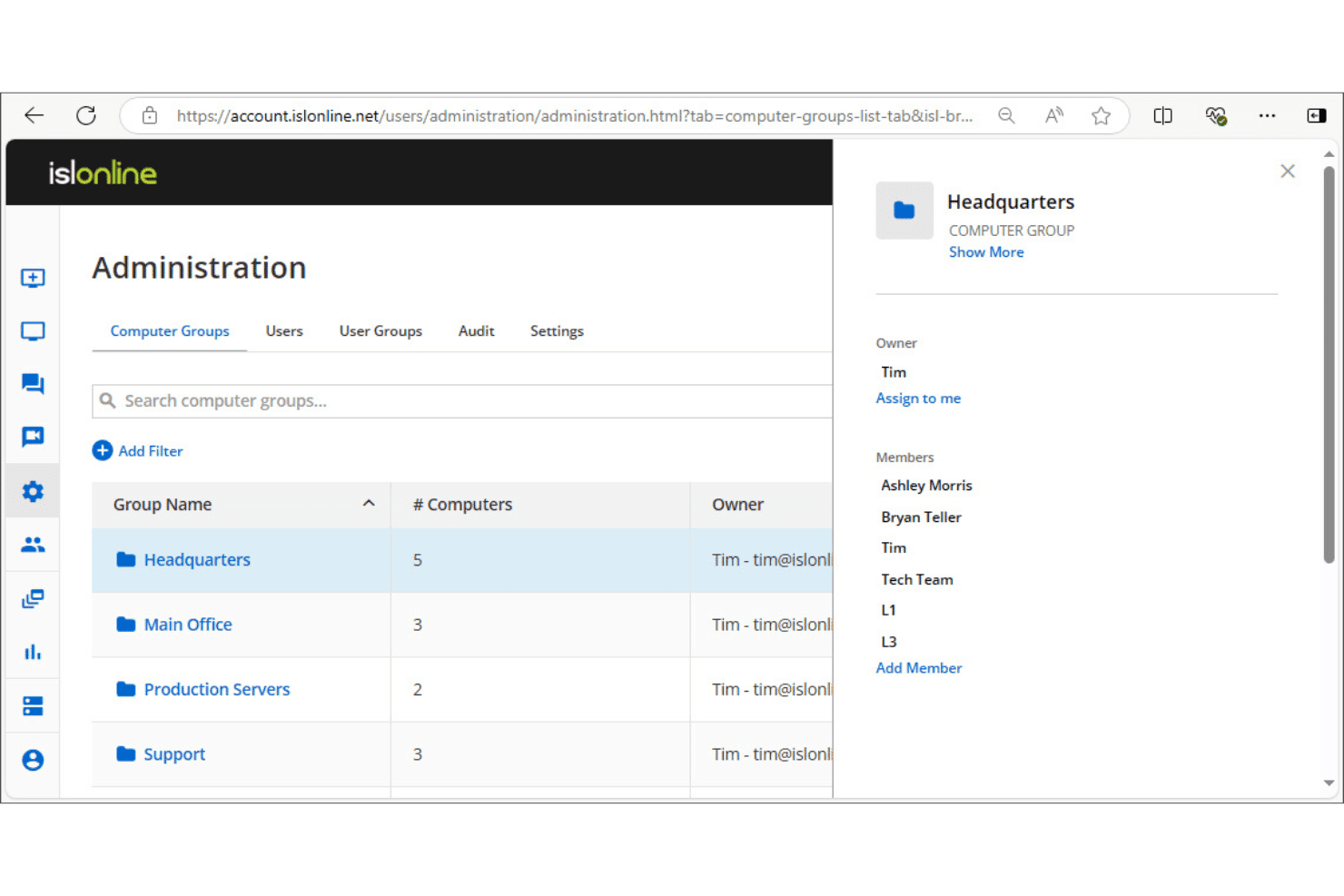
Met ISL Online kunnen beheerders computers in groepen indelen met toegangsbeheer voor leden. ISL Online is software voor externe desktops die onbeheerde toegang, live klantenservicesessies, RDP/SSH-verbindingen en centraal beheer van gebruikers en apparaten ondersteunt op Windows, macOS, Linux en mobiele platforms.
Voor wie is ISL Online het meest geschikt?
ISL Online is zeer geschikt voor IT-teams en beheerde serviceproviders die infrastructuur voor externe toegang op hun eigen servers moeten uitvoeren in plaats van afhankelijk te zijn van de cloud van een leverancier.
Waarom ik voor ISL Online heb gekozen
ISL Online staat op mijn selectielijst omdat het zelfgehoste gebruik behandelt als een volwaardige optie en niet als een bijzaak. Ik vind het prettig dat je met het zelfgehoste plan de volledige ISL Online-server op je eigen infrastructuur kunt uitvoeren, met ondersteuning voor externe LDAP-verificatie en SAML SSO naast poorten 80 en 443. Dat betekent dat je sessiegegevens nooit een cloud van een derde partij raken, wat belangrijk is wanneer je organisatie strenge vereisten op het gebied van gegevenslokalisatie of naleving heeft.
Belangrijkste functies van ISL Online
- Sessies opnemen: Leg volledige video-opnamen van externe sessies vast voor audittrajecten en documentatie voor naleving.
- Bestandsoverdracht: Verzend en ontvang bestanden tussen lokale en externe machines rechtstreeks binnen een actieve sessie.
- Tweefactorauthenticatie: Vereis bij het inloggen een tweede verificatiestap om ongeautoriseerde toegang tot externe apparaten te beperken.
- RDP/SSH-verbindingen: Maak verbinding met externe machines via RDP of SSH zonder VPN-configuratie of firewallwijzigingen.
Integraties van ISL Online
ISL Online biedt ingebouwde integraties met ServiceNow, Freshdesk, HaloITSM, Microsoft Intune, Devolutions Remote Desktop Manager, Deepser, SuperOps en PDQ Connect, en biedt een REST API voor het integreren van externe toegang of het bouwen van aangepaste OEM-integraties in RMM-, PSA-, EDR- en ITSM-platforms.
Pros and Cons
Pros:
- Kan volledig op je eigen infrastructuur worden geïmplementeerd
- Vereist extra verificatie bij het inloggen
- Ingebouwde ondersteuning voor zowel RDP als SSH
Cons:
- Zelfhosting vereist voor maximale privacy
- Geen geautomatiseerde herstelacties voor eindpunten
Learn more about ISL Online: Het meest geschikt voor beheer van meerdere desktopapparaten op grote schaal
- 7 dagen gratis proefperiode
- Vanaf $1.84/maand (jaarlijks gefactureerd)
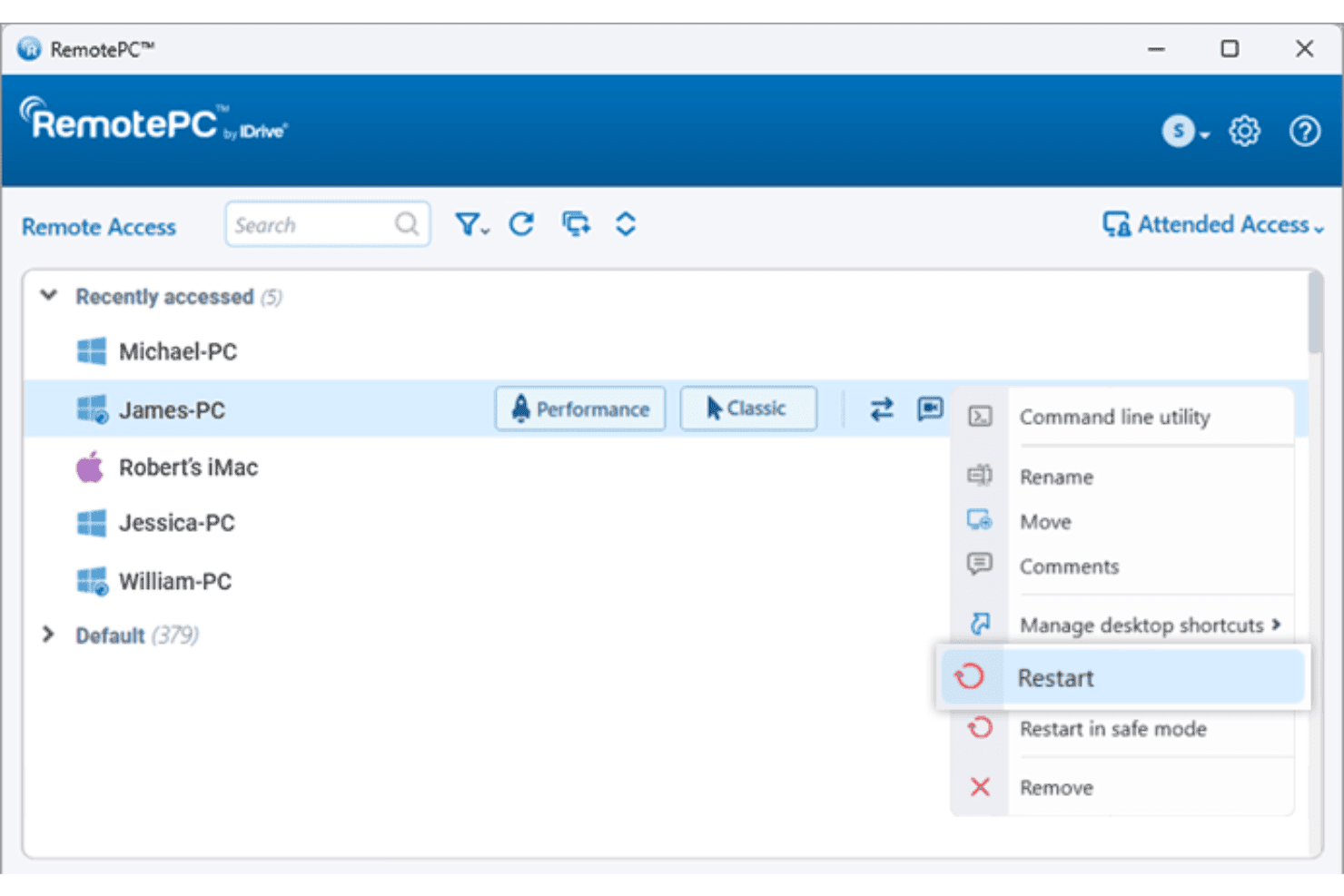
Met RemotePC kunnen gebruikers externe computers rechtstreeks vanuit de apparatenlijst opnieuw opstarten. RemotePC is een platform voor toegang op afstand waarmee je via internet verbinding kunt maken met en controle kunt uitoefenen over Windows-, Mac-, Linux-, Android- en iOS-apparaten, met functies zoals ondersteuning voor meerdere beeldschermen, bestandsoverdracht, implementatie op afstand, beheer van gebruikers- en computergroepen en het opnemen van sessies.
Voor wie is RemotePC het meest geschikt?
RemotePC is zeer geschikt voor IT-teams die grote aantallen Windows-, Mac- en Linux-apparaten beheren en behoefte hebben aan gecentraliseerde toegang op afstand met beheer van gebruikers- en computergroepen.
Waarom ik voor RemotePC heb gekozen
RemotePC staat op mijn shortlist vanwege de manier waarop het grote schaal aankan. Met de functies voor het groeperen van computers en het beheren van gebruikersgroepen kun je grote apparaatparken organiseren en toegangsrechten toewijzen zonder elke machine handmatig te configureren. Wat ik bijzonder nuttig vind, is de grootschalige implementatie via GPO, Microsoft Intune of Jamf Pro. Daarmee kun je RemotePC vanuit één centrale console naar honderden eindpunten uitrollen, in plaats van elk apparaat afzonderlijk te benaderen. Voeg daar sessie-opnamen en gedetailleerde toegangslogboeken aan toe, en je hebt een goede verantwoordingsmogelijkheid voor elke externe verbinding binnen je omgeving.
Belangrijkste functies van RemotePC
- Afdrukken op afstand: Druk documenten die op een externe machine zijn opgeslagen rechtstreeks af op je lokale printer, zonder handmatige bestandsoverdracht.
- Omleiding van USB-apparaten: Leid een USB-apparaat van je lokale machine om naar een externe computer, zodat het werkt alsof het fysiek is aangesloten.
- RDP-connector: Krijg toegang tot externe Windows-computers en -servers via RDP zonder een VPN of Microsoft RD Gateway te configureren.
- Toegang met aanwezige gebruiker: Deel een eenmalige sessiecode om direct, op aanvraag toegang te geven tot een externe computer voor realtimeondersteuning.
Integraties van RemotePC
RemotePC biedt ingebouwde integraties met Zendesk, Freshdesk, Freshservice, Jira, OneLogin, Okta, Azure AD, Keycloak, Google Workspace en Jamf Pro. Er is een API beschikbaar voor aangepaste integraties.
Pros and Cons
Pros:
- Ondersteunt toegang op afstand tot alle belangrijke platformen
- Opties voor grootschalige implementatie bij grote apparaatparken
- Functionaliteit voor ontwaken via het netwerk wordt ondersteund
Cons:
- Geen ondersteuning voor aangepaste API-integraties
- Ontbreekt aan geautomatiseerde hulpmiddelen voor het op afstand bijwerken van software
Learn more about RemotePC: Beste keuze voor snelheid en diagnostische tools voor MSP-technici
- Gratis proefperiode van 14 dagen + gratis demo beschikbaar
- Prijzen op aanvraag
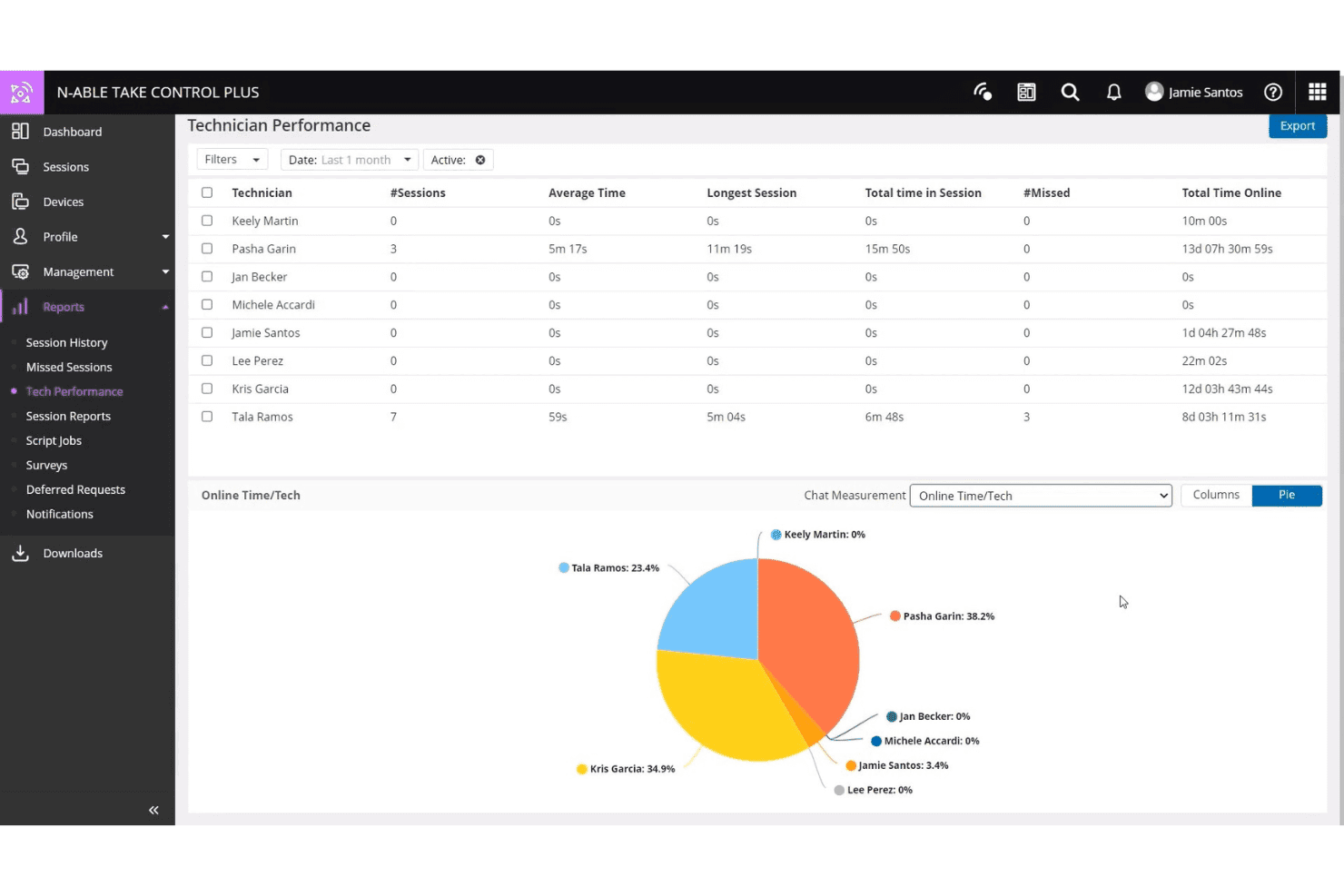
N-able Take Control houdt de sessieactiviteit en online tijd van technici bij. N-able Take Control is een tool voor ondersteuning op afstand, ontwikkeld voor MSP's en IT-teams, met sessiebeheer voor meerdere platforms, ingebouwde diagnostische tools, livechat, VoIP, multifactorauthenticatie en integraties met de RMM-platforms van N-able.
Voor wie is N-able Take Control het meest geschikt?
N-able Take Control is zeer geschikt voor MSP-technici die snel sessies willen starten en ingebouwde diagnostische tools nodig hebben zonder tussen platforms te hoeven wisselen.
Waarom ik voor N-able Take Control heb gekozen
Ik heb N-able Take Control opgenomen in mijn topkeuzes omdat de startsnelheid van sessies echt indrukwekkend is en de ingebouwde diagnostische tools ervoor zorgen dat technici niet tussen tabbladen hoeven te wisselen om problemen op te lossen. Vooral het dashboard voor de apparaatstatus spreekt mij aan. Dit toont CPU-, geheugen- en schijfgegevens tijdens een live sessie, zodat je problemen kunt diagnosticeren terwijl je werkt. De console voor opdrachten op afstand met één klik is nog een functie waar ik steeds op terugkom. Hiermee kun je scripts uitvoeren en services opnieuw starten zonder het scherm van de eindgebruiker te onderbreken.
Belangrijkste functies van N-able Take Control
- Sessies op afstand voor meerdere platforms: Maak vanuit één sessiewachtrij verbinding met Windows-, Mac-, Linux-, iOS- en Android-apparaten.
- Ondersteuning voor meerdere monitoren: Wissel tussen meerdere monitoren op het externe apparaat en bekijk ze zonder de sessie te beëindigen of opnieuw te starten.
- Bestandsoverdracht tijdens sessies: Sleep bestanden rechtstreeks naar en vanaf een extern apparaat tijdens een actieve ondersteuningssessie.
- Sessieopname: Start en stop opnames van live sessies voor audit-, nalevings- of trainingsdoeleinden voor technici.
Integraties van N-able Take Control
N-able Take Control biedt native integraties met N-sight RMM, N-central, Autotask en ConnectWise. Er is een API beschikbaar voor aangepaste integraties.
Pros and Cons
Pros:
- De startsnelheid van sessies is consistent hoog
- Ingebouwd dashboard voor de apparaatstatus tijdens sessies
- Wachtrijen voor meerdere platforms, waaronder Windows, Mac en Linux
Cons:
- Beperkte native integraties buiten het N-able-ecosysteem
- Voor sommige geavanceerde functies is het N-central-platform nodig
Learn more about N-able Take Control: Beste voor krachtige bediening op afstand in 4K-kwaliteit
- Gratis proefperiode + gratis demo beschikbaar
- Vanaf $6/maand
Visit WebsiteCustomer Rating:4.8/5
Met Splashtop kunnen gebruikers Windows-gebeurtenislogboeken op afstand bekijken en filteren op type en ernst. Splashtop is een platform voor externe toegang en ondersteuning op afstand, gebouwd voor IT-teams, met bediening van externe desktops, schermdeling, sessie-opname en ondersteuning voor meerdere monitoren op Windows-, Mac-, iOS-, Android- en Linux-apparaten.
Voor wie is Splashtop het meest geschikt?
Splashtop is zeer geschikt voor IT-teams en beheerde dienstverleners die nauwkeurige bediening van externe desktops nodig hebben, vooral wanneer beeldkwaliteit en sessieprestaties het belangrijkst zijn.
Waarom ik voor Splashtop koos
Splashtop staat op mijn selectielijst dankzij de 4K-streaming met maximaal 60 fps, waardoor het echt geschikt is voor werken op afstand met grafisch intensieve toepassingen zoals Adobe Creative Suite of AutoCAD. Ik heb het gebruikt in situaties waarin beeldgetrouwheid daadwerkelijk belangrijk is, en het verschil met een standaard HD-stream is merkbaar. Bovendien kun je dankzij ondersteuning voor meerdere monitoren meerdere externe schermen bekijken zonder het overzicht over je werkruimte te verliezen.
Belangrijkste functies van Splashtop
- Sessie-opname: Neem externe sessies automatisch op en bewaar ze voor audits, naleving of het beoordelen van problemen.
- Bestandsoverdracht: Verplaats bestanden rechtstreeks binnen een actieve sessie tussen het lokale en externe apparaat, zonder een tool van derden.
- Externe herstart: Start een externe computer opnieuw op, ook in de veilige modus, zonder de toegang tot de sessie te verliezen.
- Tweefactorauthenticatie: Vereis bij het inloggen een tweede verificatiestap om ongeautoriseerde toegang tot externe eindpunten te beperken.
Integraties van Splashtop
Splashtop biedt meer dan 40 ingebouwde integraties, waaronder Jira, ServiceNow, Zendesk, Freshservice, Microsoft Teams, Salesforce, Splunk, Jamf, NinjaOne en JumpCloud, en heeft ingebouwde integraties binnen het Microsoft-ecosysteem, waaronder Microsoft Entra ID. Er is ook een API beschikbaar voor aangepaste integraties.
Pros and Cons
Pros:
- Streamt externe desktops in 4K met 60 fps
- Maakt het veilig opnieuw opstarten van externe apparaten mogelijk
- Biedt mogelijkheden voor rechtstreekse bestandsoverdracht
Cons:
- Ontbreekt aan een opdrachtregel voor eindpunten op de achtergrond
- Geen hulpmiddelen voor het automatisch installeren van softwarepatches
Learn more about Splashtop: Het beste voor AI-ondersteunde IT-diagnostiek
- 30 dagen gratis uitproberen
- Vanaf $24.9/maand (jaarlijks gefactureerd)
Visit WebsiteCustomer Rating:4.5/5
TeamViewer detecteert en monitort alle apparaten in je netwerk. TeamViewer is een platform voor externe toegang en ondersteuning dat apparaatconnectiviteit, sessiegebaseerde probleemoplossing, endpointmonitoring en AI-ondersteunde diagnostiek combineert voor desktop-, mobiele en IoT-omgevingen.
Voor wie is TeamViewer het meest geschikt?
TeamViewer is zeer geschikt voor IT-ondersteuningsteams die grote, gemengde apparaatomgevingen beheren waarin snelle externe diagnostiek van desktops, mobiele apparaten en IoT-eindpunten dagelijks noodzakelijk is.
Waarom ik voor TeamViewer heb gekozen
TeamViewer staat op mijn shortlist dankzij Tia, de ingebouwde AI-agent die problemen tijdens een sessie daadwerkelijk diagnosticeert, een oplossing aanbeveelt, goedgekeurde herstelacties uitvoert en het resultaat controleert zonder dat je de externe sessie hoeft te verlaten. Ik ben ook te spreken over Session Insights, dat automatisch controleklare sessiesamenvattingen genereert en patroongegevens doorstuurt naar Session Analytics, zodat je terugkerende problemen in je omgeving kunt herkennen. Voor IT-teams die grote aantallen tickets over gemengde apparaatparken afhandelen, verkleinen deze twee functies samen de kloof tussen reactieve probleemoplossing en iets dat meer in de richting van autonome ondersteuning gaat.
Belangrijkste functies van TeamViewer
- Toegang zonder toezicht: Maak verbinding met goedgekeurde apparaten, waaronder computers en Android-eindpunten, en beheer deze zonder dat er aan de andere kant een gebruiker aanwezig hoeft te zijn.
- Hulp op afstand met toegevoegde realiteit: Gebruik Assist AR om medewerkers op locatie via live overlays van toegevoegde realiteit op basis van een smartphone door hardware- of softwareproblemen te begeleiden, zonder een technicus te hoeven sturen.
- Versleutelde bestandsoverdracht: Draag bestanden over tussen lokale en externe apparaten met end-to-end AES-256-versleuteling, met ondersteuning voor meerdere overdrachtsmethoden, waaronder kopiëren en plakken.
- Stille massale implementatie: Installeer de TeamViewer-client in bulk op duizenden apparaten zonder interactie van de gebruiker, waardoor de onboardingstijd voor grote apparaatparken wordt verkort.
TeamViewer-integraties
TeamViewer biedt meer dan 30 native integraties, waaronder ServiceNow, Salesforce, Zendesk, Jira, Freshworks, Slack, Google Meet, SAP, Jamf Pro en tools uit het Microsoft-ecosysteem zoals Microsoft 365, Intune, Teams, Dynamics 365 en Entra ID. Er is ook een API beschikbaar voor aangepaste integraties.
Pros and Cons
Pros:
- AI-gestuurde diagnostiek stelt in realtime oplossingen voor
- Session Insights genereert controleklare ondersteuningsrapporten
- Visuele assistentiemodus met toegevoegde realiteit
Cons:
- Ontbreekt aan een onopvallende modus voor beheer op de achtergrond
- Externe toegang wordt soms geblokkeerd door strenge firewalls
Learn more about TeamViewer: Het beste voor ondersteuning die voldoet aan FIPS 140-2
- Gratis proefversie + gratis demo beschikbaar
- Prijzen op aanvraag

BeyondTrust Remote Support houdt live sessies, wachttijden en activiteiten van medewerkers bij. BeyondTrust Remote Support is een platform voor externe toegang, ontwikkeld voor IT- en supportteams die veilig toegang moeten krijgen tot, problemen moeten oplossen bij en eindpunten moeten beheren in on-premises-, cloud- en hybride omgevingen.
Voor wie is BeyondTrust Remote Support het meest geschikt?
BeyondTrust Remote Support is zeer geschikt voor IT- en beveiligingsteams bij overheidsinstanties, defensieorganisaties en sterk gereguleerde sectoren die behoefte hebben aan ondersteuning op afstand die is gevalideerd volgens de FIPS 140-2-normen van niveau 1.
Waarom ik voor BeyondTrust Remote Support heb gekozen
BeyondTrust Remote Support is het enige product voor ondersteuning op afstand met FIPS 140-2-validatie van niveau 1, waardoor het een duidelijke keuze is voor overheidsinstanties, defensie-aannemers en organisaties die onder de vereisten van FedRAMP of FISMA vallen. Vooral de functie Kluis spreekt mij aan: hiermee kunt u tot 100.000 referenties rechtstreeks binnen externe sessies beheren, rouleren en invoeren, zodat toegang met verhoogde rechten strikt wordt gecontroleerd. Sessielogboeken en forensisch onderzoek bieden beveiligingsteams een volledig auditspoor van elke verbinding.
Belangrijkste functies van BeyondTrust Remote Support
- Jump-clients: Implementeer Jump-clients voor onbeheerde toegang tot externe eindpunten, met ondersteuning voor grootschalige implementaties en het op aanvraag toewijzen van toegang.
- Dashboard voor ondersteuning op afstand: Houd alle actieve sessies in realtime in de gaten, bekijk de werkbelasting van het team en draag sessies rechtstreeks over vanuit of neem ze over in een gecentraliseerde beheerdersweergave.
- Ondersteuning voor apparaten op meerdere platforms: Maak verbinding met Windows-, Linux-, macOS-, Chrome OS-, iOS- en Android-apparaten en los problemen ermee op vanuit één interface.
- Geautomatiseerde scriptuitvoering: Voer scripts en installatieprogramma's voor meerdere eindpunten uit tijdens externe sessies om herstelwerkzaamheden zonder handmatige tussenkomst te versnellen.
Integraties van BeyondTrust Remote Support
BeyondTrust Remote Support biedt native integraties met ServiceNow, Jira Service Management, BMC ITSM, Splunk, Microsoft Entra ID, Okta en Ping Identity. Er is een API beschikbaar voor aangepaste integraties.
Pros and Cons
Pros:
- Biedt FIPS 140-2-validatie van niveau 1
- Gecentraliseerd beheer van referenties tijdens externe sessies
- Geautomatiseerde scriptuitvoering op eindpunten
Cons:
- Ontbreekt aan een modus voor beheer van eindpunten op de achtergrond
- Vereist configuratie voor optimale onbeheerde toegang
Learn more about BeyondTrust Remote Support: Beste keuze voor zero-trusttoegang op FedRAMP-niveau
- Gratis proefversie + gratis demo beschikbaar
- Prijs op aanvraag

BeyondTrust houdt de naleving van computerbeleidsregels en clientversies op eindpunten bij. BeyondTrust Privileged Remote Access is een oplossing voor beheer van geprivilegieerde toegang (PAM) die externe sessies voor werknemers, leveranciers en serviceaccounts beheert en controleert in cloud-, lokaal geïnstalleerde en OT-omgevingen met behulp van een zero-trustarchitectuur, het injecteren van inloggegevens en sessieregistratie.
Voor wie is BeyondTrust-beheer van geprivilegieerde toegang het meest geschikt?
BeyondTrust Privileged Remote Access is zeer geschikt voor overheidsinstanties, defensie-aannemers en gereguleerde ondernemingen die externe toegangscontroles met FedRAMP-autorisatie nodig hebben voor geprivilegieerde gebruikers en externe leveranciers.
Waarom ik BeyondTrust-beheer van geprivilegieerde toegang heb gekozen
BeyondTrust Privileged Remote Access verdient een plaats op mijn lijst omdat het een van de weinige oplossingen voor externe toegang is met FedRAMP Moderate-autorisatie, wat erg belangrijk is als je bij een federale overheidsinstantie werkt of overheidsaannemers ondersteunt. Ik waardeer vooral de mogelijkheid om inloggegevens te injecteren, waarmee geprivilegieerde gebruikers zich bij systemen kunnen authenticeren zonder ooit wachtwoorden in platte tekst te zien. Combineer dat met just-in-time-toegangscontroles en volledige sessieregistratie, en je krijgt het soort controleerbaar toegangsspoor dat zowel interne beveiligingsteams als externe compliancebeoordelaars tevredenstelt.
Belangrijkste functies van BeyondTrust-beheer van geprivilegieerde toegang
- Beheer van geprivilegieerde toegang voor leveranciers: Geeft externe leveranciers tijdelijk externe toegang zonder VPN-verbinding of gedeelde inloggegevens te vereisen.
- Ondersteuning voor meerdere sessieprotocollen: Ondersteunt RDP-, VNC-, SSH-, HTTPS- en SQL-verbindingen voor geauthenticeerde en controleerbare sessies voor menselijke en niet-menselijke identiteiten.
- Toegang voor cloudontwikkelaars: Biedt protocolgerichte toegang met een workflow waarbij je je eigen tools meebrengt voor tijdelijke multicloudsystemen en API-gebaseerde omgevingen.
- Gedelegeerde onboarding van leveranciers: Hiermee kun je het gebruikersbeheer van leveranciers toewijzen aan groepsbeleidsregels, waardoor gedeelde accounts worden verwijderd en de handmatige provisioning wordt verminderd.
Integraties van BeyondTrust-beheer van geprivilegieerde toegang
BeyondTrust Privileged Remote Access biedt ingebouwde integraties met ServiceNow, Jira Service Management, Splunk, Sekoia, SailPoint IdentityIQ, AWS en VMware. Er is een API beschikbaar voor aangepaste integraties.
Pros and Cons
Pros:
- FedRAMP Moderate-autorisatie ondersteunt federale compliancevereisten
- Het injecteren van inloggegevens verbergt gevoelige wachtwoorden voor gebruikers
- Sessieregistratie maakt grondige controlesporen mogelijk
Cons:
- Ontbreekt een directe chatberichtenfunctie voor eindpunten
- Geen ingebouwd antivirusbeheer
Learn more about BeyondTrust Privileged Access Management: Het beste voor sessieopnamen en auditing
- 14 dagen gratis proefperiode
- Vanaf $33/maand (jaarlijks gefactureerd)

ScreenConnect houdt verzoeken om verhoging van bevoegdheden en toegangsgoedkeuringen bij in één dashboard. ScreenConnect is een platform voor externe toegang en ondersteuning dat toegang tot onbeheerde apparaten, sessies voor ondersteuning op afstand, beheer van bevoorrechte toegang en het delen van camerabeelden in realtime biedt voor Windows-, Mac-, Linux- en mobiele apparaten.
Voor wie is ScreenConnect het meest geschikt?
ScreenConnect is geschikt voor IT-teams en aanbieders van beheerde diensten die volledige audittrajecten en opgenomen sessielogboeken nodig hebben om aan nalevingsvereisten of interne verantwoordingsvereisten te voldoen.
Waarom ik voor ScreenConnect heb gekozen
ScreenConnect staat op mijn selectielijst vanwege de serieuze manier waarop het sessiezichtbaarheid en verantwoordingsplicht aanpakt. Elke externe sessie kan als video-opname worden vastgelegd en het auditlogboek houdt aanmeldpogingen, wachtwoordwijzigingen en sessietoegang bij in één filterbare weergave. Daardoor kun je precies terugvinden wat een technicus tijdens een specifieke sessie heeft gedaan, zonder door versnipperde logboeken te hoeven zoeken. Ik vind het ook prettig dat je auditlogboeken op sessienaam kunt filteren om snel opnamen te vinden. Dat is belangrijk wanneer je reageert op een nalevingsonderzoek of interne beoordeling.
Belangrijkste functies van ScreenConnect
- Toegang tot onbeheerde apparaten: Maak verbinding met externe Windows-, Mac- en Linux-machines zonder dat er aan de andere kant een gebruiker aanwezig hoeft te zijn.
- Camerabeelden delen in realtime: Krijg tijdens een ondersteuningssessie toegang tot een livebeeld van de camera van een apparaat om visuele context te verkrijgen over fysieke omgevingen of hardwareproblemen.
- Op rollen gebaseerd toegangsbeheer: Wijs technici machtigingen toe op gedetailleerd niveau en bepaal tot welke machines en sessietypen elke gebruiker toegang heeft.
- Wake-on-LAN: Schakel externe apparaten via het netwerk in, zodat je verbinding kunt maken met uitgeschakelde machines zonder dat iemand ter plaatse nodig is.
Integraties van ScreenConnect
ScreenConnect biedt rechtstreekse integraties met ConnectWise PSA, ConnectWise Automate, ConnectWise RMM, Acronis, Freshdesk, Zendesk, Microsoft Outlook, ServiceNow en Delinea, plus meer dan 100 uitbreidingen die beschikbaar zijn via de ConnectWise Marketplace. Er is een API beschikbaar voor aangepaste integraties.
Pros and Cons
Pros:
- Camerabeelden van apparaten in realtime delen
- Gedetailleerde auditlogboeken voor verantwoordingsbeoordelingen
- Op rollen gebaseerde machtigingen voor toegangsbeheer van technici
Cons:
- Geen gratis versie of proefversie beschikbaar
- Mist uniforme implementatie van patches voor eindpunten
Learn more about ScreenConnect: Het beste voor ondersteuning van callcenters met massale implementatie
- Gratis proefperiode van 14 dagen + gratis demo beschikbaar
- Vanaf $109 per maand (jaarlijks gefactureerd)

Met LogMeIn Rescue kunnen gebruikers ondersteuningssessies op afstand, via een mobiel apparaat of met schermdeling starten. LogMeIn Rescue is een cloudgebaseerd platform voor ondersteuning op afstand, ontwikkeld voor IT-teams en helpdesks. Het biedt toegang op afstand tot apparaten, sessiebeheer, ondersteuning voor meerdere platforms en hulpmiddelen voor technicusconsoles in desktop- en mobiele omgevingen.
Voor wie is LogMeIn Rescue het meest geschikt?
LogMeIn Rescue is zeer geschikt voor IT-helpdesks en callcenters die grote aantallen eindgebruikers op meerdere apparaten en besturingssystemen tegelijkertijd moeten ondersteunen.
Waarom ik voor LogMeIn Rescue heb gekozen
Ik heb LogMeIn Rescue opgenomen in mijn topkeuzes omdat het ondersteuning voor callcenters met grote aantallen aanvragen beter afhandelt dan de meeste tools in deze categorie. De Calling Card-functie is de echte onderscheidende factor: implementeer via een massale installatie een snelkoppeling op het bureaublad met één klik op duizenden machines van eindgebruikers, waarna gebruikers zonder pincode verbinding maken met een ondersteuningssessie. Technici aan de andere kant beheren binnenkomende aanvragen via sessiewachtrijen en kanaalroutering, waardoor workflows van callcenters op grote schaal georganiseerd blijven.
Belangrijkste functies van LogMeIn Rescue
- AI-sessiesamenvattingen: Genereer automatisch gestructureerde sessienotities op basis van chatlogboeken, apparaatgegevens en acties die de technicus tijdens een ondersteuningssessie heeft uitgevoerd.
- Sessieopname en rapportage: Neem sessies op afstand op en krijg toegang tot historische gebruiksgegevens om de activiteiten van technici te bekijken en statistieken op teamniveau bij te houden.
- Live Lens: Laat eindgebruikers hun fysieke omgeving delen via de camera van hun smartphone, zodat technici hardware- of locatieproblemen kunnen diagnosticeren zonder een bezoek aan het bureau.
- Samenwerking tussen meerdere technici: Nodig extra technici uit voor een actieve sessie om gezamenlijk problemen op te lossen zonder de sessie opnieuw te starten of over te dragen.
Integraties van LogMeIn Rescue
LogMeIn Rescue biedt native integraties met ServiceNow, Salesforce (inclusief Lightning), Microsoft Dynamics, Microsoft Teams, Zendesk, Freshdesk, Jira Service Management, Autotask en Nexthink. Het biedt ook API's en SDK's voor aangepaste integraties met CRM-, ticketing- en workflowsystemen.
Pros and Cons
Pros:
- Mogelijkheid om automatisch sessienotities te genereren
- Live Lens ondersteunt de diagnose van hardwareproblemen
- Sessies met meerdere technici zonder onderbreking
Cons:
- Geen ingebouwde antivirus voor endpoints
- Ontbreekt aan doorlopende automatisering van endpointpatches
Learn more about LogMeIn Rescue:
Andere software voor externe toegang
Hier zijn enkele aanvullende opties voor software voor externe toegang die mijn shortlist niet hebben gehaald, maar die nog steeds de moeite waard zijn om te bekijken:
- 11NinjaOneBeste voor endpointbeheer vanuit de RMM
- 12Zoho AssistBeste voor ingebouwde integraties met het Zoho-ecosysteem
- 13AteraBeste keuze voor transparante prijsstelling per technicus
- 14ManageEngine Remote Access PlusHet beste voor onbemande systeemdiagnostiek
- 15Parallels RASIdeaal voor het leveren van virtuele apps en desktops op elk apparaat
- 16AnyDeskIdeaal voor platformonafhankelijke besturing met lage latentie
- 17Azure Virtual DesktopHet meest geschikt voor cloudnative Windows-desktops
- 18LogMeIn ResolveIdeaal voor ticketbeheer en toegang tot uniforme eindpunten
- 19RustDeskBeste voor datasoevereiniteit van open source
- 20RealVNC ConnectIdeaal voor toegang tot embedded systemen en IoT
Related Reviews
How I Evaluate Remote Access Software
I split my evaluation into baseline capabilities every tool must clear—like unattended access and session auditing—and the differentiators, like zero-trust architecture or MSP ecosystem fit, that separate good tools from the right one.
Core Functionality (Table Stakes for This List)
When I'm selecting tools for my list, I rank each one on a scale from 0 (does not offer the functionality) to 5 (excels in this area) for each core functionality listed below. I then calculate the tool's total score as a percentage, using 75% as a benchmark to help assess its overall fit for the list.
- Remote control access: I evaluate real-time screen, keyboard, and mouse control across connections, checking for multi-monitor handling, resolution scaling, and performance under high-latency conditions.
- Unattended access: Tools need to support always-on agent-based connections so technicians can reach endpoints for after-hours patching or server maintenance without someone on the other end.
- Cross-platform support: I check whether each tool covers Windows, macOS, Linux, iOS, and Android as both host and client, since mixed-OS environments are the norm for most IT teams.
- Secure connection and encryption: AES-256 encryption, MFA enforcement, and SSO/SAML support are what I look for, along with any compliance certifications like SOC 2 or ISO 27001.
- File transfer and session tools: Bi-directional file transfer, clipboard sync, remote print, and in-session chat all factor in, especially for support scenarios where a technician needs to push a config file mid-session.
- Session management and auditing: I look at session recording, role-based access controls, and exportable audit logs, since these directly support compliance requirements and internal accountability reviews.
Once I have a list of tools that meet the criteria, I consider what sets each platform apart.
Differentiating Factors (What Sets Vendors Apart)
Here's how I compare and contrast different vendors:
Standout Features
Session recording with searchable metadata matters most when your compliance team needs a defensible audit trail. I check whether recordings auto-attach to tickets and how long vendors retain them. Just-in-time privileged access is equally important—I evaluate how tools handle time-bound, approval-gated elevation for contractors so access revokes automatically after a session ends. I also look at mass deployment tooling, since onboarding thousands of endpoints via silent MSI installers or Group Policy integration separates enterprise-ready platforms from ones that require manual setup.
Beyond Features
I evaluate each tool's deployment model first—cloud-hosted, self-hosted, or hybrid—because teams in regulated industries often need on-premises control or data residency guarantees. Licensing structure matters just as much: per-technician pricing suits lean internal teams, while per-endpoint or concurrent-session models can save MSPs real money at scale. I also check for native connectors to PSA, ITSM, and identity providers like Okta or Azure AD, since launching a remote session straight from a ServiceNow ticket eliminates context-switching. Finally, I look at compliance certifications like SOC 2 Type II and FedRAMP that map directly to buyer requirements in healthcare, finance, and public sector.
Een software voor externe toegang kiezen
Welke prioriteiten moeten leidend zijn bij het selecteren van software voor externe toegang om veilige, schaalbare en controleerbare toegang voor je team te ondersteunen:
| Als je prioriteit is… | Zoek dan naar… |
|---|---|
| Als je prioriteit is…Beveiliging en compliance aantonen | Zoek dan naar…Certificeringen zoals SOC 2, FIPS 140-2 of FedRAMP, plus tools voor sessie-auditing |
| Als je prioriteit is…Dekking van apparaten op ondernemingsschaal | Zoek dan naar…Grootschalige implementatie via MSI, GPO of RMM-integratie |
| Als je prioriteit is…Toegang vanaf verschillende platforms | Zoek dan naar…Volledige ondersteuning voor Windows, macOS, Linux, iOS en Android, zowel als host als client |
| Als je prioriteit is…Zero trust en gedetailleerde controle | Zoek dan naar…Op rollen gebaseerde toegang met just-in-time-bevoegdheidsverhoging en verplichte MFA-afdwinging |
| Als je prioriteit is…Probleemoplossing die klaar is voor audits | Zoek dan naar…Opname van sessies met exporteerbare logboeken en doorzoekbare metagegevens |
Je shortlist beoordelen
- Vraag nalevingsdocumentatie op: Vraag leveranciers binnen twee werkdagen om actuele SOC 2- of FedRAMP-documentatie.
- Test grootschalige implementatie: Test een installatieprogramma dat op de achtergrond werkt of een implementatie op basis van GPO op ten minste 10 eindpunten binnen afzonderlijke netwerken.
- Simuleer toegangscontroles: Gebruik een proefversie om tijdgebonden toegang waarvoor goedkeuring vereist is aan te maken voor een testcontractant en controleer of de toegang automatisch wordt ingetrokken.
- Exporteer auditlogboeken van sessies: Voltooi een sessie en exporteer vervolgens binnen 24 uur een gedetailleerd logboek of een opname voor een echt apparaat.
- Kies je route—cloudgemak versus beheer op locatie: Kies tussen de flexibiliteit van SaaS en de garanties voor datasoevereiniteit en compliance van een zelf gehoste implementatie.
Wat is software voor externe toegang?
Software voor externe toegang is een reeks hulpmiddelen waarmee u veilig verbinding kunt maken met een ander apparaat en dit via een netwerk of internet kunt bedienen. Hiermee kunnen IT-teams en gebruikers apparaten beheren, problemen oplossen en beheertaken uitvoeren zonder fysiek aanwezig te zijn. Deze platforms zijn belangrijk voor het ondersteunen van gedistribueerde omgevingen, het handhaven van beschikbaarheid en het afdwingen van beveiligingsmaatregelen op verschillende besturingssystemen en locaties.
Functies van software voor externe toegang
Let bij het selecteren van software voor externe toegang op de volgende belangrijke functies:
- Externe bediening: Hiermee kunt u het scherm, toetsenbord en de muis van een ander apparaat in realtime bekijken en bedienen om problemen op te lossen, updates uit te voeren of onderhoud te verrichten zonder fysiek op locatie aanwezig te zijn.
- Toegang zonder toezicht: Hiermee kunnen op afstand verbindingen met eindpunten worden gemaakt, zelfs wanneer er geen gebruiker aanwezig is. Dit is essentieel voor ondersteuning buiten kantooruren, het installeren van patches en werkzaamheden aan servers.
- Compatibiliteit tussen platforms: Ondersteunt verbindingen tussen apparaten met Windows, macOS, Linux, iOS en Android, zodat uw team gemengde omgevingen zonder hiaten kan beheren.
- Sterke versleuteling: Maakt gebruik van beveiligingsprotocollen zoals AES-256 om sessiegegevens te beschermen, zodat uw externe sessies niet kunnen worden onderschept of gemanipuleerd.
- Meervoudige authenticatie (MFA): Vereist naast een wachtwoord nog een authenticatiestap, waardoor het risico op ongeautoriseerde toegang afneemt en de algehele beveiliging verbetert.
- Sessieopnamen en auditlogboeken: Legt activiteiten tijdens externe sessies vast en biedt gedetailleerde logboeken, wat helpt bij naleving, interne controles en het verifiëren van gebruikersacties.
- Hulpmiddelen voor bestandsoverdracht: Vergemakkelijken het verzenden en ontvangen van bestanden tussen lokale en externe machines. Dit is cruciaal voor het implementeren van patches en scripts of het verzamelen van logbestanden tijdens ondersteuningssessies.
- Op rollen gebaseerde toegangscontroles: Hiermee kunt u gedetailleerde machtigingen toewijzen aan gebruikers of groepen, zodat externe toegang wordt beperkt tot degenen die deze absoluut nodig hebben.
- Chat tijdens sessies: Biedt technici een manier om tijdens een ondersteuningssessie rechtstreeks met externe gebruikers te communiceren, zodat problemen kunnen worden verduidelijkt en het oplossen ervan kan worden gecoördineerd.
- Schaalbare implementatiemogelijkheden: Biedt hulpmiddelen voor grootschalige installatie of integraties (zoals MSI-installatieprogramma's, GPO of RMM-connectoren), waardoor het eenvoudiger wordt om grote aantallen eindpunten in uw omgeving aan te sluiten.
Veelvoorkomende AI-functies van software voor externe toegang
Naast de hierboven genoemde standaardfuncties van software voor externe toegang integreren veel van deze oplossingen AI met functies zoals:
- Geautomatiseerde probleemdetectie: AI analyseert sessieactiviteiten en systeemlogboeken om potentiële problemen of afwijkingen te identificeren voordat deze escaleren, zodat IT-teams problemen proactief kunnen aanpakken.
- Intelligente sessietoewijzing: AI koppelt ondersteuningsverzoeken aan de meest gekwalificeerde technicus op basis van eerdere prestaties, expertise en huidige werklast, waardoor de oplostijd afneemt en de gebruikerservaring verbetert.
- Voorspellende onderhoudswaarschuwingen: AI houdt de gezondheid en gebruikspatronen van apparaten in de gaten om hardwarestoringen of softwareproblemen te voorspellen, zodat teams onderhoud kunnen inplannen voordat verstoringen optreden.
- Contextbewuste sessiesamenvattingen: AI genereert gedetailleerde, doorzoekbare samenvattingen van externe sessies, waarbij belangrijke acties, beslissingen en resultaten worden uitgelicht om documentatie en nalevingscontroles te vereenvoudigen.
- Toegangsmonitoring op basis van afwijkingen: AI evalueert voortdurend het gedrag van gebruikers tijdens externe sessies en markeert ongebruikelijke toegangspatronen of risicovolle acties voor onmiddellijke controle, waardoor de beveiliging wordt versterkt.
- Chatbots voor ondersteuning in natuurlijke taal: Chatbots op basis van AI helpen gebruikers en technici tijdens externe sessies door vragen te beantwoorden, stappen voor probleemoplossing voor te stellen of routinetaken via conversatiegerichte interfaces te automatiseren.
Voordelen van software voor externe toegang
Het implementeren van software voor externe toegang biedt verschillende voordelen voor uw team en uw bedrijf. Hier zijn enkele voordelen waar u naar kunt uitkijken:
- Veilige externe connectiviteit: Stel uw team in staat om apparaten overal vandaan op te lossen, te beheren en bij te werken met behulp van versleutelde verbindingen, MFA en op rollen gebaseerde toegangscontroles.
- Platformonafhankelijk apparaatbeheer: Beheer en controleer eindpunten op Windows-, macOS-, Linux-, iOS- en Android-platforms en ondersteun diverse infrastructuren zonder meerdere hulpprogramma's nodig te hebben.
- Ondersteuning voor audits en naleving: Voldoe aan audit- en wettelijke vereisten dankzij sessieopnamen, exporteerbare logboeken en gedetailleerde registratie van gebruikersactiviteiten, waardoor nalevingscontroles eenvoudiger worden.
- Onbeheerd systeemonderhoud: Plan patches, behandel incidenten of krijg buiten kantooruren toegang tot servers zonder op een eindgebruiker te wachten, dankzij functies voor altijd actieve agents en onbeheerde toegang.
- Directe bestandsoverdracht en samenwerking: Draag bestanden over, synchroniseer klemborden en gebruik chat tijdens sessies om problemen efficiënt op te lossen en gebruikers in realtime te ondersteunen.
- Schaalbare implementatie: Neem snel duizenden apparaten in gebruik met MSI-installatieprogramma's, integratie met groepsbeleid of RMM-connectoren die grootschalige implementatie vereenvoudigen.
- AI-gestuurde inzichten en automatisering: Gebruik AI-hulpmiddelen voor geautomatiseerde probleemdetectie, contextbewuste samenvattingen van sessies en voorspellende onderhoudswaarschuwingen, zodat uw team problemen kan voorkomen voordat deze gevolgen hebben voor gebruikers.
Kosten en prijzen
Bij het kiezen van software voor externe toegang is inzicht in de verschillende beschikbare prijsmodellen en abonnementen vereist. De kosten variëren op basis van functies, teamgrootte, uitbreidingen en meer. In de onderstaande tabel staan veelvoorkomende abonnementen, hun gemiddelde prijzen en de functies die doorgaans zijn inbegrepen in oplossingen voor externe toegang:
Vergelijkingstabel voor abonnementen voor software voor externe toegang
| Type abonnement | Gemiddelde prijs | Veelvoorkomende functies |
|---|---|---|
| Type abonnementGratis abonnement | Gemiddelde prijs$0 | Veelvoorkomende functiesBasisbediening op afstand, beperkte sessieduur, ondersteuning voor één of twee apparaten en ondersteuning door de community. |
| Type abonnementPersoonlijk abonnement | Gemiddelde prijs$5–$15/gebruiker/maand | Veelvoorkomende functiesOnbeheerde toegang, hulpmiddelen voor bestandsoverdracht, sterke versleuteling en ondersteuning voor Windows en macOS. |
| Type abonnementZakelijk abonnement | Gemiddelde prijs$25–$40/gebruiker/maand | Veelvoorkomende functiesPlatformonafhankelijke toegang, meervoudige verificatie, sessieopnamen, teambeheer en auditlogboeken. |
| Type abonnementBedrijfsabonnement | Gemiddelde prijs$50–$80/gebruiker/maand | Veelvoorkomende functiesGeavanceerde op rollen gebaseerde toegangscontroles, bevoegdheidsverhoging op het juiste moment, integratie met identiteitsproviders, grootschalige implementatie en certificeringen voor naleving. |
Veelgestelde vragen over software voor externe toegang
Hier vindt u antwoorden op enkele veelgestelde vragen over software voor externe toegang:
Hoe weet ik of software voor externe toegang veilig genoeg is voor mijn organisatie?
Controleer voor een veilige configuratie voor externe toegang of sterke versleuteling (zoals AES-256), meervoudige verificatie en integratie met een wachtwoordbeheerder of SSO worden ondersteund. Vraag leveranciers om nalevingscertificeringen zoals SOC 2 of FedRAMP. Bevestig dat de oplossing naast uw bestaande firewall en VPN werkt en zorg ervoor dat sessies worden opgenomen, zodat u kunt aantonen dat u voor elke sessie controle heeft over de toegang.
Kan software voor externe toegang werken met een combinatie van Windows-, macOS- en Linux-systemen?
Ja, een veelzijdige oplossing voor extern bureaublad ondersteunt verbindingen tussen verschillende platformen. Zoek naar leveranciers die expliciet compatibiliteit vermelden voor het beheren van een Windows-pc, macOS, Linux, Chromebooks (ChromeOS) en iOS-apparaten. Controleer of ze een systeemeigen desktopapp en een mobiele app aanbieden, zodat u in beide richtingen verbinding kunt maken.
Wat is het verschil tussen onbeheerde en beheerde externe toegang?
Onbeheerde externe toegang betekent dat technische ondersteuning verbinding kan maken met een extern bureaublad zonder dat er een gebruiker aanwezig is. Dit maakt onderhoud aan servers buiten kantooruren of het bijwerken van een Raspberry Pi mogelijk. Voor beheerde toegang moet iemand bij het apparaat aanwezig zijn om toestemming te geven voor de sessie. De meeste teams gebruiken beide benaderingen, afhankelijk van het scenario.
Hoe kan ik software voor externe toegang op grote schaal implementeren op een groot aantal eindpunten?
U kunt implementatietools gebruiken zoals MSI-installatieprogramma’s, scripts, groepsbeleidsobjecten of integratie met platforms voor bewaking en beheer op afstand (RMM). Geef voorrang aan leveranciers die opdrachtregelopties of rechtstreekse integraties voor grootschalige ingebruikname bieden—handmatige installaties zijn niet schaalbaar.
Kan ik software voor externe toegang integreren met mijn ITSM- of helpdesksysteem?
Ja, veel platforms voor externe toegang bieden systeemeigen connectoren voor ITSM-tools zoals ServiceNow, Jira Service Management of Zendesk. Hiermee kunt u sessies rechtstreeks vanuit supporttickets starten en audittrails automatisch aan het juiste record koppelen. Dat bespaart tijd en beperkt het wisselen tussen contexten.
Met welke nalevingsvereisten moet ik rekening houden bij het kiezen van software voor externe toegang?
Richt u op de verwachtingen binnen uw sector. Zorgteams hebben vaak naleving van HIPAA nodig, financiële teams letten op SOC 2 Type II en inkopers uit de publieke sector kunnen FedRAMP vereisen. Vraag leveranciers om actuele certificeringsrapporten en bekijk hun opties voor sessielogging en gegevenslocatie zorgvuldig.