

Un controllo dell'accessibilità dei PDF analizza i documenti alla ricerca di ostacoli all'accessibilità digitale. Può anche aiutare a individuare le correzioni che rendono i contenuti utilizzabili da un numero maggiore di persone. Se stai cercando queste soluzioni, devi ridurre al minimo i rischi di non conformità, assistere tutti gli utenti e semplificare la supervisione man mano che aumenta l'utilizzo dei PDF.
Questa guida illustra gli strumenti per i team IT e di sviluppo che devono integrare l'accessibilità nella gestione dei documenti. Include opzioni per automatizzare i controlli e supportare flussi di lavoro pronti per gli audit. Troverai opzioni per le revisioni manuali, l'automazione e persino contenuti specializzati, tutte basate su funzionalità e standard importanti per il tuo team.
Perché fidarsi dei nostri consigli sui software
6,700+
Reviews
20
Industry experts
16+
Evaluation factors
14
Years
Il nostro team testa e recensisce software dal 2012. In quanto leader tecnologici noi stessi, sappiamo quanto sia difficile — e importante — scegliere il software giusto.
Per questa guida, abbiamo valutato gli strumenti attraverso test praticie ricerche indipendenti, assegnando un punteggio agli strumenti in base ai nostri criteri di selezione.
Le nostre recensioni riflettono il nostro giudizio editoriale umano, non un discorso di vendita.
Revisori esperti:
- Paulo Gardini MiguelDirettore tecnico
 Tim FisherVP dell'IA
 Gabriel RosasTech Lead e architetto software
 Christhian GruhnTech Lead e architetto della piattaforma

Tabella comparativa degli strumenti per il controllo dell'accessibilità dei PDF
| Tool | Best For | Trial Info | Price | ||
|---|---|---|---|---|---|
| 1 | Ideale per la convalida in batch e la correzione dei problemi | Piano gratuito disponibile | A partire da $599/utente/anno (fatturato annualmente) | Website | |
| 2 | Ideale per le revisioni visive PDF/UA e WCAG | Piano gratuito disponibile | Prezzi su richiesta | Website | |
| 3 | Ideale per i test guidati manuali di conformità | Piano gratuito disponibile | Prezzi su richiesta | Website | |
| 4 | Ideale per la verifica automatizzata di PDF/UA | Prova gratuita di 14 giorni | Prezzo su richiesta | Website | |
| 5 | Ideale per i controlli di qualità dei PDF regolamentati | Demo gratuita disponibile | Prezzi su richiesta | Website | |
| 6 | Ideale per modificare PDF con strumenti di accessibilità | Prova gratuita di 14 giorni | A partire da $10.99/utente/mese (con fatturazione annuale) | Website | |
| 7 | Ideale per controllare e correggere i PDF | Prova gratuita di 7 giorni | A partire da $19.99/mese | Website | |
| 8 | Ideale per il monitoraggio dei PDF sull'intero sito | Demo gratuita disponibile | Prezzi su richiesta | Website | |
| 9 | Ideale per la bonifica assistita dall'IA delle tabelle | Demo gratuita disponibile | Prezzi su richiesta | Website | |
| 10 | Ideale per la convalida in blocco dell'accessibilità dei PDF | Demo gratuita disponibile | Prezzi su richiesta | Website |


Recensioni degli strumenti per il controllo dell'accessibilità dei PDF
Di seguito trovi i miei riepiloghi dettagliati dei migliori strumenti per il controllo dell’accessibilità dei PDF inclusi nel mio elenco. Le mie recensioni offrono uno sguardo approfondito alle funzionalità, ai casi d’uso più adatti e alle capacità di ogni strumento, per aiutarti a trovare quello più adatto alle tue esigenze.
 Ideale per la convalida in batch e la correzione dei problemi
- Piano gratuito disponibile
- A partire da $599/utente/anno (fatturato annualmente)
Visit WebsiteCustomer Rating:5/5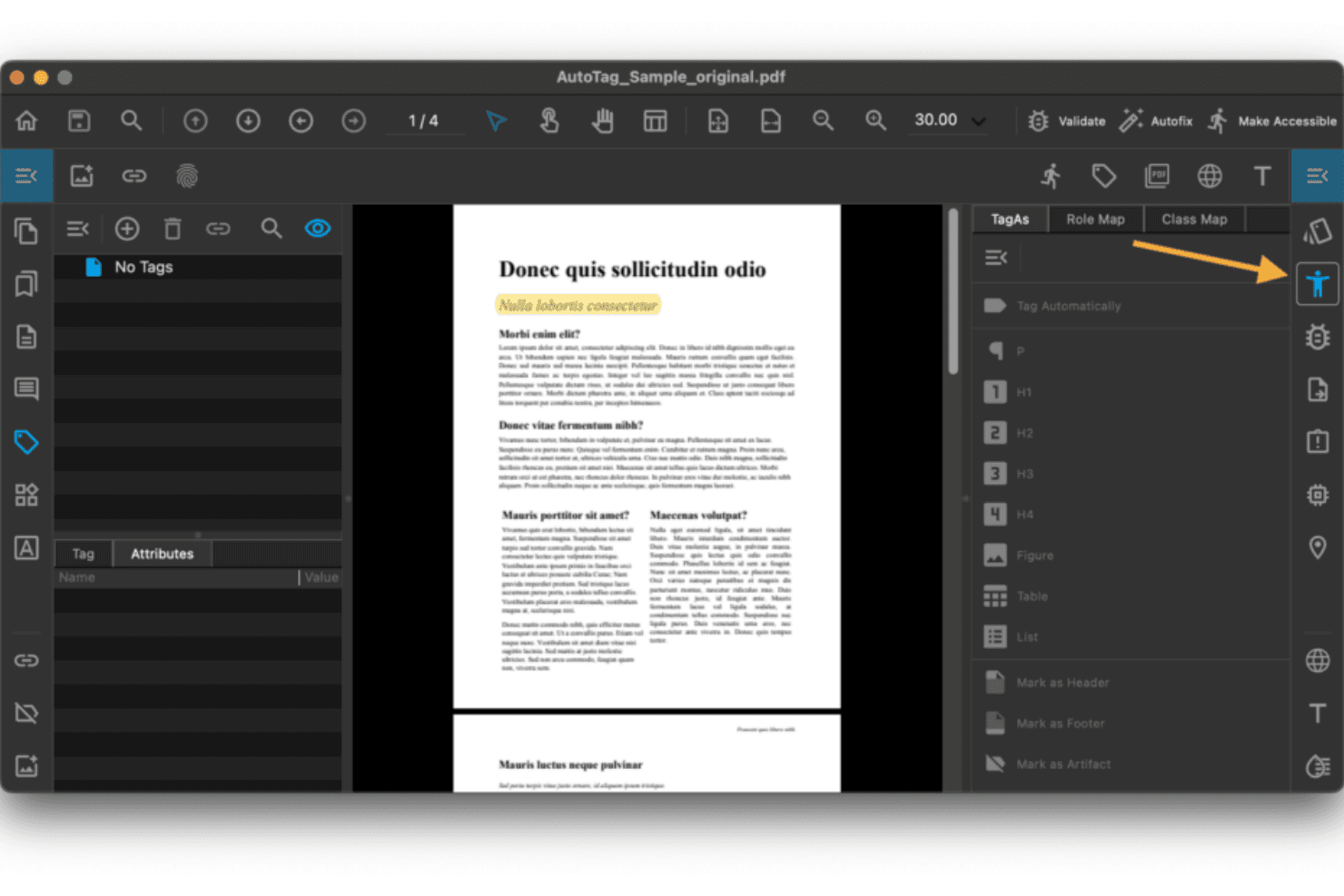
PDFix consente agli utenti di assegnare tag agli elementi PDF per garantire la conformità all'accessibilità. PDFix è una piattaforma per l'accessibilità dei PDF basata sull'IA, destinata alla conformità a WCAG 2.1/2.2, PDF/UA e Section 508. Supporta inoltre la correzione automatizzata in batch ed è disponibile come applicazione desktop, SDK e API REST.
Per chi è più adatto PDFix?
PDFix è adatto a sviluppatori e team responsabili della conformità in settori regolamentati come quello governativo, finanziario e sanitario. È particolarmente utile per i team che devono convalidare e correggere grandi volumi di PDF in modo programmatico.
Perché ho scelto PDFix
PDFix si è guadagnato un posto tra i migliori della mia selezione grazie al modo in cui gestisce la convalida in batch e le correzioni automatizzate all'interno di un unico flusso di lavoro. L'ho utilizzato su intere cartelle di documenti e segnala ogni violazione con riferimenti al Matterhorn Protocol, indicando con precisione la posizione esatta nell'albero dei tag. Ciò che apprezzo maggiormente è l'assegnazione automatica dei tag basata sull'IA, che ricostruisce l'ordine di lettura e la gerarchia delle intestazioni in centinaia di PDF senza dover intervenire manualmente su ogni file.
Caratteristiche principali di PDFix
- Convalida degli standard basata su veraPDF: Utilizza il motore veraPDF, lo standard del settore, per verificare la conformità a PDF/UA, WCAG e Section 508.
- Esportazione dei report in più formati: Genera report sull'accessibilità in formato JSON, XML, HTML e testo semplice, per facilitarne la condivisione e l'integrazione.
- Applicazione desktop multipiattaforma: Funziona su Windows, macOS e Linux, permettendo di verificare l'accessibilità su tutti i principali sistemi operativi.
- SDK per sviluppatori con API: Fornisce collegamenti per Python, C#, Java, Node.js e C++ per integrare i controlli di accessibilità nei flussi di lavoro automatizzati.
Integrazioni di PDFix
PDFix offre integrazioni native con Enfocus Switch e GitHub Actions Marketplace, oltre a un'API REST e a un SDK per integrazioni personalizzate con Python, C#, Java, Node.js e C++.
Pros and Cons
Pros:
- Corregge in batch centinaia di PDF contemporaneamente
- L'assegnazione automatica dei tag basata sull'IA ricostruisce automaticamente l'ordine di lettura
- I riferimenti al Matterhorn Protocol identificano gli errori esatti nei tag
Cons:
- Richiede competenze da sviluppatore per l'integrazione nelle pipeline
- Nessuna opzione di elaborazione dei documenti basata sul cloud
Learn more about PDFix: Ideale per le revisioni visive PDF/UA e WCAG
- Piano gratuito disponibile
- Prezzi su richiesta

PAC verifica la conformità dei PDF in materia di accessibilità secondo PDF/UA, WCAG e criteri di qualità. PAC è uno strumento gratuito per computer Windows che verifica i PDF rispetto agli standard PDF/UA (ISO 14289-1) e WCAG 2.1 utilizzando il Protocollo Matterhorn. Include anche un analizzatore visivo della struttura dei tag e un'anteprima della struttura per i lettori dello schermo.
Per chi è più indicato PAC (Verificatore dell'accessibilità dei PDF)?
PAC è particolarmente adatto ai responsabili della conformità in materia di accessibilità e ai responsabili della documentazione tecnica che devono verificare manualmente i PDF rispetto agli standard PDF/UA e WCAG.
Perché ho scelto PAC (Verificatore dell'accessibilità dei PDF)
PAC si è guadagnato un posto nella mia selezione dei migliori strumenti soprattutto per il modo in cui gestisce la revisione visiva PDF/UA. L'anteprima per i lettori dello schermo mi permette di vedere esattamente ciò che leggeranno JAWS o NVDA, mentre la struttura completa dei tag mostra ogni proprietà e attributo nella struttura del documento. Apprezzo anche la copertura dei punti di controllo del Protocollo Matterhorn verificabili automaticamente. Di conseguenza, posso confrontare i risultati della convalida con criteri PDF/UA consolidati.
Funzionalità principali di PAC (Verificatore dell'accessibilità dei PDF)
- Analisi semantica assistita dall'IA: Utilizza l'IA per ridurre il lavoro manuale nella verifica della qualità della struttura e dei tag dei PDF.
- Visualizzazione di simulazione del lettore dello schermo: Mostra visivamente come i lettori dello schermo più diffusi interpreteranno il contenuto e l'ordine del PDF.
- Statistiche sulla struttura del documento: Presenta statistiche e riepiloghi strutturali per ogni PDF, inclusi la distribuzione dei tag e i dettagli della struttura logica.
- Funzionamento locale e senza connessione: Funziona interamente sui computer Windows senza caricare i file su Internet o su server esterni.
Integrazioni di PAC (Verificatore dell'accessibilità dei PDF)
PAC (Verificatore dell'accessibilità dei PDF) non dispone di integrazioni native.
Pros and Cons
Pros:
- Scaricabile e utilizzabile gratuitamente senza limiti di tempo
- Copertura completa dei punti di controllo del Protocollo Matterhorn
- Anteprima visiva integrata del lettore dello schermo
Cons:
- Solo per Windows, esclusi gli utenti Mac e Linux
- Nessuna elaborazione in blocco per più PDF
Learn more about PAC (PDF Accessibility Checker): Ideale per i test guidati manuali di conformità
- Piano gratuito disponibile
- Prezzi su richiesta

Allyant guida gli utenti nella correzione dei PDF attraverso flussi di lavoro dettagliati passo dopo passo. CommonLook PDF Validator di Allyant è un plugin gratuito per Adobe Acrobat che verifica i PDF rispetto agli standard WCAG, PDF/UA e Sezione 508. Inoltre, guida gli utenti attraverso test di accessibilità automatizzati e manuali e fornisce report di certificazione per ogni documento.
Per chi è più adatto Allyant?
CommonLook PDF Validator di Allyant è particolarmente indicato per i responsabili della conformità e i team che si occupano della documentazione presso enti governativi o aziende operanti in settori regolamentati, dove la conformità alla Sezione 508 è un requisito imprescindibile.
Perché ho scelto Allyant
Ho scelto CommonLook PDF Validator di Allyant come uno dei migliori strumenti per i test guidati manuali di conformità. A differenza degli strumenti che si limitano a segnalare automaticamente i problemi, guida l'utente attraverso controlli che nessuno scanner può completare in modo affidabile. Ciò include la verifica dell'accuratezza del testo alternativo (non solo della sua presenza), la conferma che i riepiloghi delle tabelle siano significativi e la convalida della gerarchia dei tag delle intestazioni. Il report di certificazione per ogni documento fornisce una prova concreta della conformità alla Sezione 508, a WCAG e a PDF/UA.
Funzionalità principali di Allyant
- Integrazione con Adobe Acrobat: Funziona come plugin all'interno di Adobe Acrobat Pro su Windows per l'analisi nativa dei PDF.
- Controlli per la Sezione 508 e HHS: Include test specifici per le normative sull'accessibilità del governo e del settore sanitario statunitensi.
- Evidenziazione dei contenuti basata sui tag: Consente di esaminare visivamente l'applicazione dei tag all'interno del PDF per un'ispezione più approfondita.
- Report di certificazione per ogni documento: Genera un certificato di conformità scaricabile dopo ogni controllo per la conservazione dei documenti.
Integrazioni di Allyant
CommonLook PDF Validator di Allyant funziona come plugin per Adobe Acrobat Pro su Windows. Le integrazioni native oltre ad Adobe Acrobat Pro non sono documentate chiaramente.
Pros and Cons
Pros:
- Guida gli utenti attraverso i controlli manuali di conformità
- Convalida rispetto alla Sezione 508, a WCAG e a PDF/UA
- Genera report di certificazione per ogni documento
Cons:
- Funziona solo su Windows tramite Adobe Acrobat
- Nessuna scansione in batch di più PDF
Learn more about Allyant: Ideale per la verifica automatizzata di PDF/UA
- Prova gratuita di 14 giorni
- Prezzo su richiesta

pdfaPilot 5 introduce il supporto per ePub 3.0 e la conversione da e-mail a PDF/A. pdfaPilot è uno strumento aziendale per la conformità PDF/UA e PDF/A di callas software. È disponibile come applicazione desktop, server, CLI e SDK per la verifica automatizzata dell'accessibilità nei flussi di lavoro documentali.
Per chi è più indicato pdfaPilot?
I team addetti alle operazioni IT e alla conformità in contesti governativi, legali o aziendali che devono elaborare grandi archivi PDF per verificarne la conformità a PDF/UA.
Perché ho scelto pdfaPilot
pdfaPilot si è guadagnato un posto tra i migliori della mia selezione perché nessun altro strumento che ho testato è al suo livello per la verifica automatizzata di PDF/UA su grandi volumi. Ad esempio, l'elaborazione tramite cartelle monitorate della variante Server esegue fino a 8 processi paralleli. La licenza Dispatcher può distribuire l'elaborazione su più macchine per gestire archivi di grandi dimensioni. Apprezzo anche pdfGoHTML, che converte i PDF con tag in HTML con codici colore, permettendomi di verificare visivamente la struttura del documento, la gerarchia dei titoli e la qualità del testo alternativo.
Funzionalità principali di pdfaPilot
- Supporto completo alla conformità agli standard: Supporta i controlli di accessibilità PDF/A-1, PDF/A-2, PDF/A-3 e PDF/UA-1 verificabili automaticamente.
- Editor dei profili di controllo qualità: Consente di creare, modificare e applicare set personalizzati di regole per l'accessibilità e la conformità dei PDF.
- Anteprima della struttura da PDF a HTML: Converte i PDF con tag in HTML visivo per una rapida ispezione delle strutture di accessibilità.
- Opzioni flessibili per API e integrazione: Offre REST API, CLI e SDK per l'integrazione con l'automazione dei flussi di lavoro e le pipeline documentali.
Integrazioni di pdfaPilot
pdfaPilot offre l'integrazione nativa con Enfocus Switch per l'automazione dei flussi di lavoro e fornisce REST API, CLI e SDK per integrazioni personalizzate con sistemi di gestione documentale e pipeline CI/CD.
Pros and Cons
Pros:
- Copertura approfondita di PDF/UA-1 e del Protocollo Matterhorn
- I processi paralleli del server accelerano il controllo di archivi di grandi dimensioni
- L'output HTML visivo conferma l'accuratezza della struttura dei tag
Cons:
- Nessun editor integrato per la correzione manuale dei tag
- Configurazione complessa per i team addetti alla conformità privi di competenze tecniche
Learn more about pdfaPilot: Ideale per i controlli di qualità dei PDF regolamentati
- Demo gratuita disponibile
- Prezzi su richiesta

DocShifter consente agli utenti di creare flussi di lavoro documentali con moduli di trasformazione concatenati. DocShifter PDFValidator è uno strumento automatizzato per la validazione dei PDF in base agli standard di conformità normativi e tecnici, incluso PDF/UA-1. Ad esempio, può controllare segnalibri, collegamenti ipertestuali, incorporamento dei caratteri, proprietà delle pagine e annotazioni.
Per chi è più adatto DocShifter PDFValidator?
È particolarmente adatto ai team aziendali nei settori delle scienze della vita, bancario e assicurativo che necessitano di una validazione automatizzata e ad alto volume dei PDF in conformità agli standard normativi per la presentazione dei documenti.
Perché ho scelto DocShifter PDFValidator
Ho scelto DocShifter PDFValidator per la precisione con cui si rivolge ai flussi di lavoro documentali regolamentati. Esegue la validazione in base agli standard per la presentazione dei documenti alle autorità sanitarie, controllando segnalibri, collegamenti ipertestuali, incorporamento dei caratteri e conformità delle pagine in un'unica operazione automatizzata. Apprezzo in particolare il supporto a PDF/UA-1 come formato di output convalidato, un aspetto importante quando la qualità dei documenti è direttamente legata ai criteri di accettazione normativa.
Funzionalità principali di DocShifter PDFValidator
- Validazione dei collegamenti ipertestuali: controlla automaticamente la presenza di collegamenti ipertestuali non funzionanti, esterni o formattati in modo errato nei file PDF.
- Analisi della struttura dei segnalibri: verifica l'organizzazione e la nidificazione dei segnalibri, nonché il loro allineamento con la struttura del documento.
- Applicazione delle proprietà delle pagine: garantisce che dimensioni, orientamento e numerazione delle pagine siano conformi ai requisiti normativi e tecnici.
- Rilevamento di annotazioni e commenti: segnala la presenza di annotazioni, commenti o modifiche rilevate che dovrebbero essere rimosse prima dell'archiviazione.
Integrazioni di DocShifter PDFValidator
DocShifter PDFValidator offre integrazioni native con Veeva Vault, OpenText Documentum, Lorenz docuBridge e Microsoft SharePoint. È disponibile un'API per integrazioni personalizzate e l'automazione dei flussi di lavoro.
Pros and Cons
Pros:
- Convalida i PDF in base agli standard per la presentazione dei documenti alle autorità sanitarie
- Supporta il controllo automatizzato di file PDF in serie ad alto volume
- Rileva problemi relativi all'incorporamento dei caratteri, alle annotazioni e ai segnalibri
Cons:
- Nessuna correzione integrata per gli errori di accessibilità
- Limitato alla validazione, senza un controllo più ampio dell'accessibilità
Learn more about DocShifter PDFValidator: Ideale per modificare PDF con strumenti di accessibilità
- Prova gratuita di 14 giorni
- A partire da $10.99/utente/mese (con fatturazione annuale)
Visit WebsiteCustomer Rating:4.6/5
La schermata iniziale di Foxit PDF Editor offre un accesso rapido agli strumenti PDF. Foxit PDF Editor è una piattaforma per la modifica dei PDF con strumenti di accessibilità integrati. Questi includono il controllo WCAG e della Sezione 508, l'etichettatura automatica, la modifica dell'ordine di lettura, la gestione del testo alternativo e flussi di lavoro guidati per la correzione.
Per chi è più adatto Foxit PDF Editor?
Foxit PDF Editor è adatto ai team che si occupano di documentazione tecnica e ai responsabili della conformità presso organizzazioni di medie e grandi dimensioni che devono creare, modificare e correggere PDF in conformità ai requisiti della Sezione 508 o dell'ADA.
Perché ho scelto Foxit PDF Editor
Ho incluso Foxit PDF Editor tra le mie scelte principali perché combina il controllo dell'accessibilità e la correzione direttamente nel documento in un unico ambiente di modifica. Apprezzo in particolare lo strumento Controllo completo, che genera un report interattivo in cui ogni problema segnalato rimanda direttamente alla sua posizione nel documento. Il pannello Ordine di lettura e la funzione di etichettatura automatica consentono di correggere i problemi di strutturazione dei tag senza dover passare da un'applicazione all'altra.
Funzionalità principali di Foxit PDF Editor
- Report completo del controllo di accessibilità: analizza i PDF alla ricerca di problemi relativi a WCAG e Sezione 508 e fornisce un report interattivo con risultati dettagliati.
- Pannello dell'editor dei tag: consente di modificare i tag, aggiungere o adattare le intestazioni e contrassegnare gli elementi decorativi come artefatti direttamente nella struttura del documento.
- Gestione del testo alternativo: supporta l'aggiunta e la convalida del testo alternativo per le immagini e il contrassegno degli elementi decorativi come artefatti.
- Automazione con la Procedura guidata delle azioni: automatizza i controlli e le correzioni dell'accessibilità in più passaggi su diversi documenti, riducendo il lavoro manuale ripetitivo.
Integrazioni di Foxit PDF Editor
Foxit PDF Editor offre integrazioni native con Microsoft OneDrive, Google Drive, Dropbox, Box e SharePoint. È disponibile un'API per le integrazioni personalizzate.
Pros and Cons
Pros:
- Combina nativamente la modifica e il controllo dell'accessibilità
- Supporta i controlli di convalida PDF/UA e WCAG
- L'etichettatura automatica genera la struttura dai PDF privi di tag
Cons:
- La correzione in batch non dispone di pianificazione né automazione
- Segnala meno problemi rispetto agli strumenti di controllo dedicati
Learn more about Foxit PDF Editor: Ideale per controllare e correggere i PDF
- Prova gratuita di 7 giorni
- A partire da $19.99/mese
Visit WebsiteCustomer Rating:4.5/5
Adobe Acrobat offre strumenti come Modifica, Firma, Esporta e Timbro. Adobe Acrobat Pro è una piattaforma per la modifica e l'accessibilità dei PDF con un verificatore di accessibilità integrato. Offre inoltre un editor dell'albero dei tag, strumenti per l'ordine di lettura e la generazione assistita dall'IA del testo alternativo per la bonifica dei PDF.
A chi è più adatto Adobe Acrobat?
Adobe Acrobat Pro è particolarmente adatto ai responsabili della conformità in materia di accessibilità e ai responsabili della documentazione tecnica nelle organizzazioni aziendali e del settore pubblico.
Perché ho scelto Adobe Acrobat
Adobe Acrobat merita un posto nella mia selezione perché nessun altro strumento combina in modo altrettanto completo il controllo dell'accessibilità e la bonifica direttamente nell'applicazione. Apprezzo in particolare l'editor dell'albero dei tag e lo strumento Ordine di lettura, che mi consentono di esaminare e correggere i problemi strutturali direttamente nella stessa interfaccia. L'aggiunta del testo alternativo generato dall'IA nel 2025 mi permette di risolvere uno dei problemi di accessibilità più comuni senza dover cambiare strumento.
Funzionalità principali di Adobe Acrobat
- Azione Verifica accessibilità: analizza i PDF alla ricerca di problemi relativi alla conformità agli standard e genera un rapporto dettagliato sull'accessibilità.
- Rapporti di audit esportabili: produce documentazione sulla conformità che puoi condividere o archiviare per audit interni ed esterni.
- Integrazione con Microsoft Office: consente di creare PDF accessibili direttamente da file Word, Excel e PowerPoint.
- Supporto per le tecnologie assistive: garantisce la compatibilità con i più diffusi lettori di schermo e altri dispositivi assistivi per una navigazione accessibile dei documenti.
Integrazioni di Adobe Acrobat
Adobe Acrobat offre integrazioni native nell'ecosistema Microsoft, tra cui Microsoft 365 e SharePoint, e supporta i flussi di lavoro PDF direttamente dalle applicazioni Microsoft Office. Nessuna integrazione con pipeline di accessibilità basate su API.
Pros and Cons
Pros:
- Bonifica direttamente nell'applicazione insieme al controllo dell'accessibilità
- Il testo alternativo generato dall'IA accelera la bonifica
- Editor dell'albero dei tag per correzioni strutturali dirette
Cons:
- Elaborazione in batch limitata senza una licenza aziendale
- Nessuna integrazione con pipeline di accessibilità basate su API
Learn more about Adobe Acrobat: Ideale per il monitoraggio dei PDF sull'intero sito
- Demo gratuita disponibile
- Prezzi su richiesta
Visit WebsiteCustomer Rating:4.5/5
Recite Me aiuta i siti di viaggio a offrire supporto online ai passeggeri con disabilità. Recite Me è un verificatore dell'accessibilità dei PDF che esegue la scansione del tuo sito web per individuare, analizzare e correggere automaticamente i documenti PDF secondo gli standard WCAG 2.2 di livello AA.
Per chi è più adatto Recite Me?
Recite Me è una soluzione particolarmente adatta alle organizzazioni che gestiscono grandi volumi di PDF pubblicati sul web e necessitano di un monitoraggio continuo della conformità, anziché di audit una tantum.
Perché ho scelto Recite Me
Recite Me è entrato nella mia lista ristretta perché affronta l'accessibilità dei PDF a livello di sito anziché di singolo file. Esegue la scansione del tuo sito web per individuare automaticamente i PDF collegati, riducendo la necessità di identificare manualmente i documenti. Successivamente, le nuove scansioni continue segnalano i documenti nuovi o modificati non appena compaiono. Inoltre, la sincronizzazione bidirezionale con il CMS può sostituire i file corretti senza doverli ripubblicare manualmente.
Funzionalità principali di Recite Me
- Dashboard della conformità: La dashboard centralizzata visualizza in tempo reale lo stato di accessibilità di tutti i PDF analizzati.
- Strumenti di correzione automatica: I moduli basati sull'IA applicano tag strutturali, correggono l'ordine di lettura e migliorano automaticamente i metadati.
- Monitoraggio continuo dei PDF: Le scansioni e gli avvisi programmati rilevano e segnalano i PDF nuovi o aggiornati sul tuo sito web.
- Integrazione con il CMS: La sincronizzazione bidirezionale garantisce che qualsiasi PDF caricato nel tuo CMS venga controllato automaticamente e, se necessario, corretto.
Integrazioni di Recite Me
Le integrazioni native non sono documentate in modo chiaro. È disponibile un'API per le integrazioni personalizzate.
Pros and Cons
Pros:
- Esegue la scansione dell'intero sito alla ricerca di ogni PDF collegato
- L'OCR automatizzato converte automaticamente il testo incorporato nelle immagini
- Il monitoraggio continuo segnala i nuovi caricamenti senza controlli manuali
Cons:
- Nessuna opzione autonoma per desktop o per la scansione offline
- Per le strutture di tag complesse è ancora necessaria la correzione manuale
Learn more about Recite Me: Ideale per la bonifica assistita dall'IA delle tabelle
- Demo gratuita disponibile
- Prezzi su richiesta

Equidox suggerisce automaticamente le zone dei tag utilizzando ML Page Match. Equidox è una piattaforma cloud per la bonifica dei PDF che utilizza il rilevamento basato sull'IA per identificare e contrassegnare la struttura dei documenti. Include tabelle, titoli, elenchi e immagini. Può inoltre esportare PDF, file HTML ed EPUB accessibili.
A chi è più adatto Equidox?
Equidox è una soluzione particolarmente adatta ai responsabili della conformità e alle squadre che gestiscono documenti nel settore pubblico, nell'istruzione superiore e nella sanità, occupandosi di grandi raccolte di PDF che richiedono una bonifica strutturata.
Perché ho scelto Equidox
Ho scelto Equidox come una delle soluzioni migliori perché il suo rilevatore intelligente di tabelle lo distingue per chiunque si occupi della bonifica di PDF complessi. Identifica automaticamente righe, colonne, celle unite e strutture con celle estese su più righe o colonne, inoltre compila automaticamente il riepilogo della tabella con i dati relativi ai titoli e al numero di celle. L'anteprima HTML può anche aiutare a verificare come un lettore di schermo interpreterà la struttura della tabella prima di esportare il PDF accessibile finale.
Funzionalità principali di Equidox
- Rilevatore intelligente delle zone: Utilizza l'IA per identificare titoli, elenchi, collegamenti e immagini nei PDF privi di tag, consentendo una contrassegnatura accurata.
- Anteprima HTML: Offre una visualizzazione in tempo reale di come i lettori di schermo interpreteranno la struttura e il contenuto del documento.
- OCR integrato: Converte i documenti acquisiti tramite scansione in testo digitale con contrassegnatura automatica per l'accessibilità.
- Gestione di gruppi e ruoli: Fornisce autorizzazioni, domini di accesso configurabili e controlli per la collaborazione destinati alle squadre più grandi.
Integrazioni di Equidox
Equidox offre integrazioni SSO con Microsoft e Google e mette a disposizione un'API per integrazioni personalizzate e l'elaborazione in lotti. Le integrazioni native oltre a queste non sono documentate chiaramente.
Pros and Cons
Pros:
- Il rilevamento delle tabelle basato sull'IA gestisce strutture complesse
- OCR integrato per la bonifica dei PDF acquisiti tramite scansione
- L'anteprima HTML conferma l'output del lettore di schermo
Cons:
- Elaborazione in lotti limitata rispetto agli strumenti aziendali
- Non è disponibile un pannello di controllo autonomo per i report sulla conformità
Learn more about Equidox: Ideale per la convalida in blocco dell'accessibilità dei PDF
- Demo gratuita disponibile
- Prezzi su richiesta

PREP guida gli utenti nella correzione della struttura dei titoli nei documenti PDF. PREP di Continual Engine è una piattaforma basata su cloud per la correzione dell'accessibilità dei PDF, con assegnazione automatica dei tag basata sull'intelligenza artificiale e verifica integrata della conformità a WCAG 2.2/PDF/UA. Offre inoltre la modifica dell'ordine di lettura e API per la convalida in blocco.
A chi è più adatto PREP di Continual Engine?
PREP è particolarmente adatto ai team che si occupano di accessibilità presso università, enti governativi e grandi organizzazioni che gestiscono elevati volumi di documenti PDF obsoleti.
Perché ho scelto PREP di Continual Engine
Ho scelto PREP come una delle soluzioni migliori perché la sua API per il controllo dell'accessibilità e lo strumento ContinuA11Y Audit gestiscono la convalida in blocco su una scala che la maggior parte dei verificatori non riesce a eguagliare. Posso indirizzare ContinuA11Y a un intero sito, fargli rilevare automaticamente i PDF non accessibili e trasferirli direttamente in PREP per la correzione all'interno di un unico flusso di lavoro. L'API esegue la convalida rispetto a WCAG 2.2, PDF/UA-1 e Section 508 utilizzando il Protocollo Matterhorn, così ogni problema segnalato viene associato a un punto di controllo specifico della conformità.
Funzionalità principali di PREP di Continual Engine
- Assegnazione automatica dei tag basata sull'intelligenza artificiale: utilizza l'apprendimento automatico per rilevare e contrassegnare automaticamente elementi del documento come elenchi, tabelle e titoli.
- Modalità OCR integrata: elabora PDF acquisiti tramite scansione o basati su immagini per aggiungere contenuti testuali selezionabili e accessibili.
- Anteprima per lettori di schermo: simula il modo in cui i PDF corretti verranno interpretati dalle tecnologie assistive.
- Contrassegnatura dei documenti basata su modelli: consente di creare e riutilizzare modelli di contrassegnatura per una correzione coerente tra documenti simili.
Integrazioni di PREP di Continual Engine
PREP offre integrazioni native con Canvas, D2L Brightspace, CivicPlus e Wagtail, oltre a un'API REST per integrazioni personalizzate.
Pros and Cons
Pros:
- Gestisce la convalida in blocco dei PDF su scala aziendale
- L'assegnazione automatica dei tag basata sull'intelligenza artificiale accelera notevolmente la correzione
- Copre WCAG 2.2, PDF/UA e Section 508
Cons:
- Richiede una configurazione tecnica per i flussi di lavoro basati su API
- Opzioni limitate per la correzione indipendente su desktop
Learn more about PREP by Continual Engine:
Altri strumenti per il controllo dell'accessibilità dei PDF
Ecco alcune opzioni aggiuntive per il controllo dell’accessibilità dei PDF che non sono entrate nel mio elenco, ma che vale comunque la pena valutare:
- 11TheLaTeXLab PDF Accessibility CheckerIdeale per le verifiche dell'accessibilità di LaTeX e della matematica
- 12PdftoolsIdeale per la convalida dell'accessibilità basata su API
How I Evaluate PDF Accessibility Checkers
I split my evaluation into baseline checks like PDF/UA validation and batch processing. I then consider differentiators like remediation depth, API access, and compliance coverage.
Core Functionality (Table Stakes For This List)
When I'm selecting tools for my list, I rank each one on a scale from 0 (does not offer the functionality) to 5 (excels in this area) for each core functionality listed below. I then calculate the tool's total score into a percentage, using 65% as a benchmark to help assess its overall fit for the list.
- WCAG/PDF-UA Validation: I check whether a tool covers WCAG 2.1/2.2 AA, PDF/UA-1, and Section 508 rules—not just a partial subset of basic checks.
- Tag Structure Analysis: A good checker lets you inspect the full tag tree, logical reading order, and heading hierarchy so screen readers interpret content correctly.
- Accessibility Issue Detection: I assess whether the tool can identify accessibility issues across document structure, tags, reading order, and other machine-testable requirements.
- Detailed Issue Reporting: Reports should pinpoint each failure by location and severity, with export options like JSON or XML for feeding into tracking systems.
- Remediation Guidance: Beyond flagging errors, I evaluate whether the tool offers specific fix instructions or in-tool corrections for issues like missing alt text.
- Standards Coverage: I assess which accessibility standards and requirements each checker supports, such as PDF/UA, WCAG, and Section 508.
Once I have a list of tools that meet the criteria, I consider what sets each platform apart.
Differentiating Factors (What Sets Vendors Apart)
Here's how I compare and contrast different vendors:
Standout Features
Automated remediation is a major differentiator. For example, AI-assisted or one-click fixes for missing tags, alt text, and table headers can reduce manual PDF editing. I also look for a visual reading order and tag tree editor, since adjusting logical structure by hand is often the only way to get complex layouts right for screen readers. Detailed audit reports matter too, especially when your team needs exportable compliance documentation for legal reviews or regulatory audits.
Beyond Features
Security and data handling matter, especially for teams processing legal or healthcare PDFs. I check whether vendors offer on-premise options or hold certifications like SOC 2 and ISO 27001. Compliance standards coverage is another factor I evaluate closely. Accessibility regulations vary by region and sector, so tools that track updates to WCAG, PDF/UA, and EN 301 549 help you stay current. Finally, I consider deployment flexibility. I look at whether a tool fits your stack as a SaaS app, desktop plugin, or CMS integration.
Come scegliere uno strumento per il controllo dell'accessibilità dei PDF
Quando valuti gli strumenti per il controllo dell'accessibilità dei PDF, concentrati innanzitutto sulle esigenze del flusso di lavoro documentale e sulle responsabilità relative alla conformità:
| Se la tua priorità è... | Cerca... |
| Report normativi pronti per gli audit | Documentazione dettagliata ed esportabile sulla conformità |
| Elaborazione di grandi volumi di documenti | Controllo automatico in batch per archivi di grandi dimensioni |
| Integrazione del flusso di lavoro | Opzioni API/CLI per pipeline CI/CD o CMS |
| Correzione rapida | Suggerimenti per le correzioni integrati nello strumento o assistiti dall'IA |
| Modifica di layout documentali complessi | Albero visivo dei tag ed editor dell'ordine di lettura |
Come valutare il tuo elenco
- Richiedi un report di audit di esempio: chiedi un report leggibile dalla macchina e da una persona per un PDF interno di tua proprietà.
- Esegui un test in batch su 10 file: carica un insieme di documenti rappresentativo per verificare come lo strumento gestisce la convalida e la reportistica in batch su larga scala.
- Controlla la documentazione API: esamina la documentazione dell'API REST, della CLI o dell'SDK del fornitore per trovare esempi di integrazione e supporto ai flussi di lavoro CI/CD.
- Richiedi per iscritto una clausola di conformità: Richiedi una dichiarazione che garantisca la copertura degli standard WCAG 2.2 e PDF/UA-1 nei termini contrattuali o nell'SLA.
- Compromesso: automazione vs. controllo manuale: Decidi se desideri correzioni rapide e automatizzate su larga scala oppure se hai bisogno di modifiche precise e manuali per documenti complessi.
Cosa sono i verificatori dell'accessibilità dei PDF?
I verificatori dell'accessibilità dei PDF analizzano i PDF alla ricerca di problemi che possono creare barriere per le persone con disabilità. Successivamente segnalano tali problemi per la revisione o la correzione. Questi verificatori convalidano i documenti rispetto a standard come WCAG e PDF/UA, esaminano le strutture dei tag e forniscono indicazioni operative per la correzione. I team li utilizzano per garantire che i documenti siano fruibili da tutti, siano conformi ai requisiti di legge e possano essere facilmente sottoposti a verifica per valutarne il livello di accessibilità.
Funzionalità dei verificatori dell'accessibilità dei PDF
Quando selezioni i verificatori dell'accessibilità dei PDF, presta attenzione alle seguenti funzionalità principali:
- Convalida WCAG/PDF-UA: Verifica ogni PDF rispetto a standard di accessibilità come WCAG, PDF/UA e Sezione 508 per individuare le lacune di conformità e supportare la gestione dei rischi legali.
- Analisi della struttura dei tag: Esamina l'albero dei tag del documento, l'ordine di lettura e la gerarchia dei titoli per determinare se le tecnologie assistive interpreteranno correttamente i contenuti.
- Verifica automatizzata in batch: Elabora più PDF contemporaneamente, consentendo di effettuare verifiche e monitoraggi efficienti in grandi archivi di documenti o nei flussi di lavoro dei team.
- Report dettagliati dei problemi: Genera report leggibili dalle macchine e dalle persone che mostrano esattamente dove si verificano i problemi di accessibilità, insieme alla loro gravità e alle azioni suggerite.
- Indicazioni per la correzione: Fornisce istruzioni specifiche e operative o strumenti guidati integrati per correggere errori come testo alternativo mancante, elementi privi di tag e ordine di lettura errato.
- Integrazione con API/CLI: Offre API REST e strumenti da riga di comando affinché i team possano automatizzare i controlli di accessibilità nelle pipeline CI/CD o nei flussi di pubblicazione.
- Report di conformità esportabili: Produce report in formati come PDF, HTML o XML da condividere con i revisori o da conservare nella documentazione relativa all'accessibilità.
- Editor visivo dell'albero dei tag: Consente agli utenti di visualizzare in anteprima e modificare visivamente la struttura di un PDF, facilitando la correzione di layout complessi senza richiedere conoscenze tecniche approfondite.
- Configurazione di regole personalizzate: Offre agli amministratori la possibilità di applicare regole di accessibilità specifiche dell'organizzazione o di segnalare scenari di conformità particolari.
- Controlli degli accessi basati sui ruoli: Consente ai diversi membri del team di esaminare, approvare o correggere i problemi in base alle autorizzazioni assegnate, supportando le verifiche collaborative e la conformità.
Funzionalità comuni dei verificatori dell'accessibilità dei PDF basate sull'AI
Oltre alle funzionalità standard dei verificatori dell'accessibilità dei PDF elencate sopra, molte di queste soluzioni integrano l'AI con funzionalità come:
- Generazione del testo alternativo basata sull'AI: Crea automaticamente testi alternativi descrittivi per immagini e grafici, riducendo il lavoro manuale e migliorando l'accessibilità per gli utenti dei lettori di schermo.
- Suggerimento automatico dei tag: Utilizza l'AI per analizzare la struttura del documento e consigliare o applicare tag appropriati, riducendo il lavoro manuale necessario per applicare tag a PDF complessi.
- Previsione dell'ordine di lettura: Sfrutta l'apprendimento automatico per dedurre la sequenza logica di lettura dei contenuti, contribuendo a garantire che i lettori di schermo presentino le informazioni nell'ordine previsto.
- Definizione delle priorità dei problemi in base al contesto: Applica l'AI per valutare la gravità e l'impatto dei problemi di accessibilità rilevati, guidando gli utenti ad affrontare prima quelli più critici.
- Indicazioni per la correzione in linguaggio naturale: Fornisce istruzioni generate dall'AI e sensibili al contesto per correggere specifici errori di accessibilità, rendendo la correzione più intuitiva per utenti con diversi livelli di esperienza.
Vantaggi dei verificatori dell'accessibilità dei PDF
L'implementazione di verificatori dell'accessibilità dei PDF offre diversi vantaggi al tuo team e alla tua azienda. Ecco alcuni dei vantaggi che puoi aspettarti:
- Conformità normativa: supporta il rispetto di standard come WCAG, PDF/UA e Section 508, riducendo il rischio legale per la tua organizzazione.
- Maggiore usabilità dei documenti: garantisce che i PDF siano accessibili alle persone che utilizzano tecnologie assistive, rilevando e correggendo i problemi relativi all'ordine di lettura e alla marcatura.
- Preparazione agli audit: produce report dettagliati ed esportabili che documentano i miglioramenti dell'accessibilità, semplificando la preparazione per audit o revisioni.
- Risparmio di tempo: automatizza i controlli in batch e suggerisce correzioni all'interno dello strumento, consentendo ai team di elaborare e correggere grandi insiemi di documenti in modo più efficiente.
- Collaborazione tra team: l'accesso basato sui ruoli e le funzionalità del flusso di lavoro aiutano i team IT, i responsabili della conformità e i proprietari dei contenuti a gestire insieme l'accessibilità.
- Integrazione nei processi: le opzioni API e CLI consentono di eseguire controlli automatici nel ciclo di vita dei documenti, mantenendo uniforme la conformità durante il passaggio dei file tra pubblicazione e revisione.
- Riduzione degli errori manuali: le funzionalità automatizzate e basate sull'intelligenza artificiale individuano problemi che i controlli manuali potrebbero non rilevare, migliorando la qualità e la coerenza complessive dell'accessibilità dei PDF.
Costi e prezzi
Il prezzo dei controlli dell'accessibilità dei PDF varia in base alle funzionalità, alle dimensioni del team, alla modalità di distribuzione e ai componenti aggiuntivi. Per fare un confronto, la tabella seguente riassume i tipi di piano più comuni, i prezzi tipici e le funzionalità incluse:
Tabella comparativa dei piani per i controlli dell'accessibilità dei PDF
| Tipo di piano | Prezzo medio | Funzionalità comuni |
|---|---|---|
| Tipo di pianoPiano gratuito | Prezzo medio$0 | Funzionalità comuniConvalida di base per un numero limitato di PDF, report manuali e accesso ai suggerimenti essenziali per la correzione. |
| Tipo di pianoPiano personale | Prezzo medio$10–$30/utente/mese | Funzionalità comuniControlli illimitati per un singolo utente, elaborazione in batch, reportistica avanzata e supporto via e-mail. |
| Tipo di pianoPiano aziendale | Prezzo medio$40–$80/utente/mese | Funzionalità comuniAccesso multiutente, integrazioni API e con i flussi di lavoro, correzione automatizzata, report esportabili pronti per gli audit e controlli degli accessi basati sui ruoli. |
| Tipo di pianoPiano per grandi aziende | Prezzo medio$100–$250/utente/mese | Funzionalità comuniOpzioni di distribuzione personalizzate, funzionalità di sicurezza avanzate, supporto prioritario, analisi della conformità a livello organizzativo e onboarding dedicato. |
Domande frequenti sul controllo dell'accessibilità dei PDF
Ecco alcune risposte alle domande comuni sui controlli dell’accessibilità dei PDF:
Quali standard verificano i controlli dell'accessibilità dei PDF?
La maggior parte dei controlli dell’accessibilità dei PDF convalida i documenti rispetto a WCAG 2.1/2.2, PDF/UA, Sezione 508 e talvolta allo standard europeo EN 301 549, garantendo un’ampia copertura della conformità a livello globale.
Posso usare i controlli dell'accessibilità dei PDF per grandi quantità di documenti?
Alcuni controlli dell’accessibilità dei PDF offrono l’elaborazione in batch per analizzare più documenti contemporaneamente, mentre altri sono progettati principalmente per la convalida di singoli file.
Quanto sono accurati i controlli automatici dell'accessibilità?
Gli strumenti automatici sono molto efficaci nell’individuare problemi strutturali e tag mancanti, ma i documenti complessi o con layout particolari traggono ancora vantaggio da una revisione e da una correzione manuali.
Questi strumenti si integrano con i sistemi di gestione dei contenuti o del flusso di lavoro?
Sì, diversi fornitori offrono API, plugin o integrazioni integrate con piattaforme CMS, sistemi DAM e pipeline di pubblicazione per controlli automatici della conformità.
Cosa succede se viene rilevato un problema: i controlli lo risolvono al posto mio?
Alcuni controlli offrono suggerimenti guidati o basati sull’intelligenza artificiale per la correzione e possono automatizzare la risoluzione di problemi comuni, come la mancanza di testo alternativo o un ordine di lettura errato, ma talvolta sono ancora necessarie modifiche manuali.