
The right features in MDM software decide whether you manage devices or chase them. Device enrollment and provisioning, plus remote lock and wipe, cover the basics.
You're balancing security, compliance, and support tickets with limited time. This guide walks through 15 features so you can see what to prioritize and which gaps will hurt as your fleet grows.
15 Key Features to Look for in MDM Software
These 15 mobile device management features cover the controls and workflows your team should evaluate:
1. Device Enrollment and Provisioning
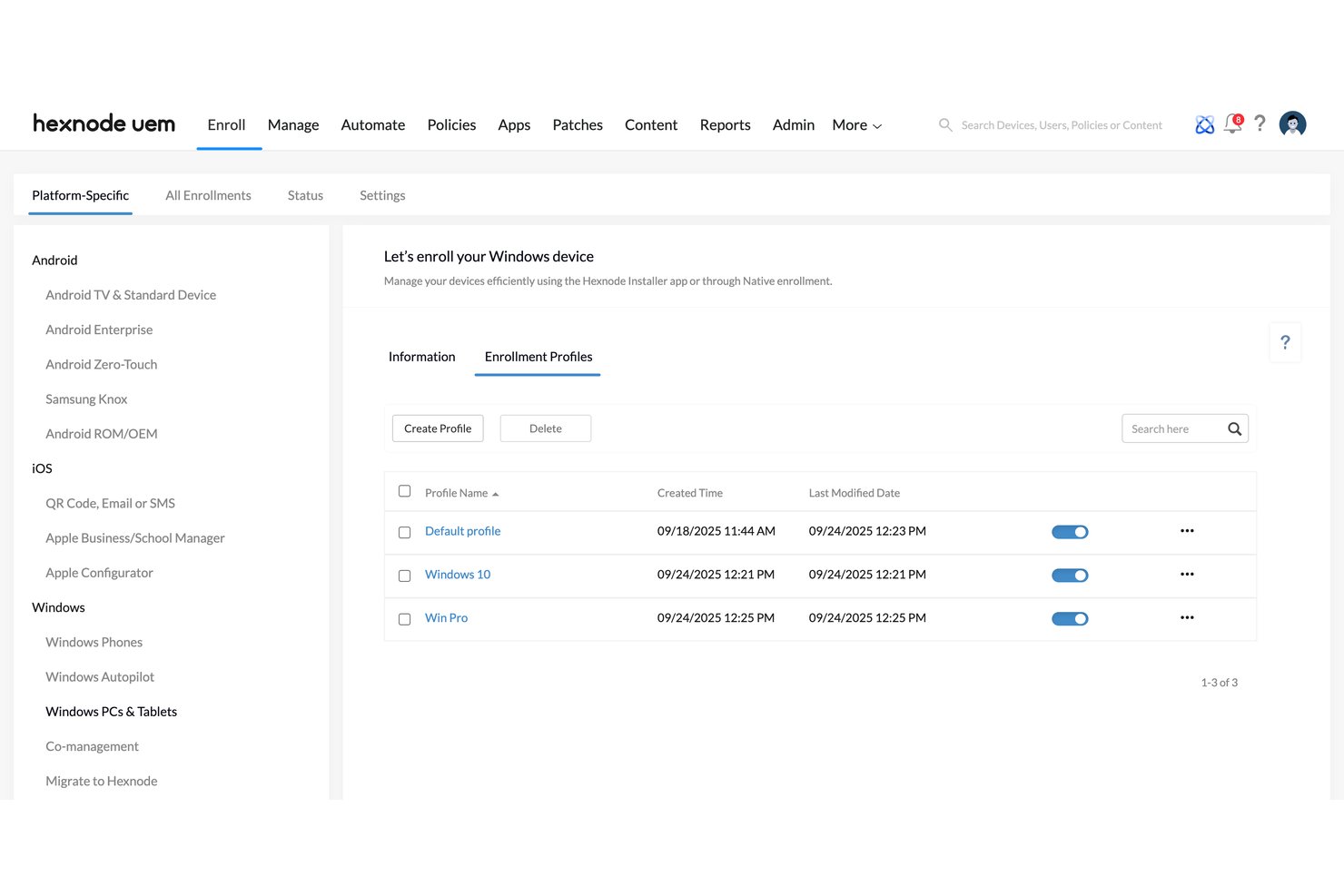
Device enrollment and provisioning registers a device with your MDM server and applies the settings, apps, and policies it needs. Zero-touch options like Apple Business Manager, Android Enterprise, and Windows Autopilot let a device configure itself the first time it connects.
In my experience, this feature matters most when you onboard devices in bulk or support remote staff. You ship a sealed device, and it arrives already configured.
Look for enrollment profiles by role or department. They keep setup consistent and cut down manual imaging work.
Each platform handles zero-touch enrollment a little differently, so match the method to the devices you actually buy:
| Platform | Enrollment method | Typical use case |
|---|---|---|
| PlatformiOS, iPadOS, macOS | Enrollment methodApple Business Manager automated enrollment | Typical use caseCompany-owned iPhones shipped to remote staff |
| PlatformAndroid | Enrollment methodAndroid Enterprise zero-touch enrollment | Typical use caseFleet of rugged scanners in a warehouse |
| PlatformWindows | Enrollment methodWindows Autopilot with Microsoft Intune | Typical use caseNew laptops sent straight from the reseller |
| PlatformPersonal devices | Enrollment methodUser enrollment or work profile | Typical use caseBYOD phones with separated work data |
I've seen Jamf Pro and Intune handle these flows well, though each one favors its own ecosystem. Test one device per platform before you scale.
2. Policy and Configuration Management
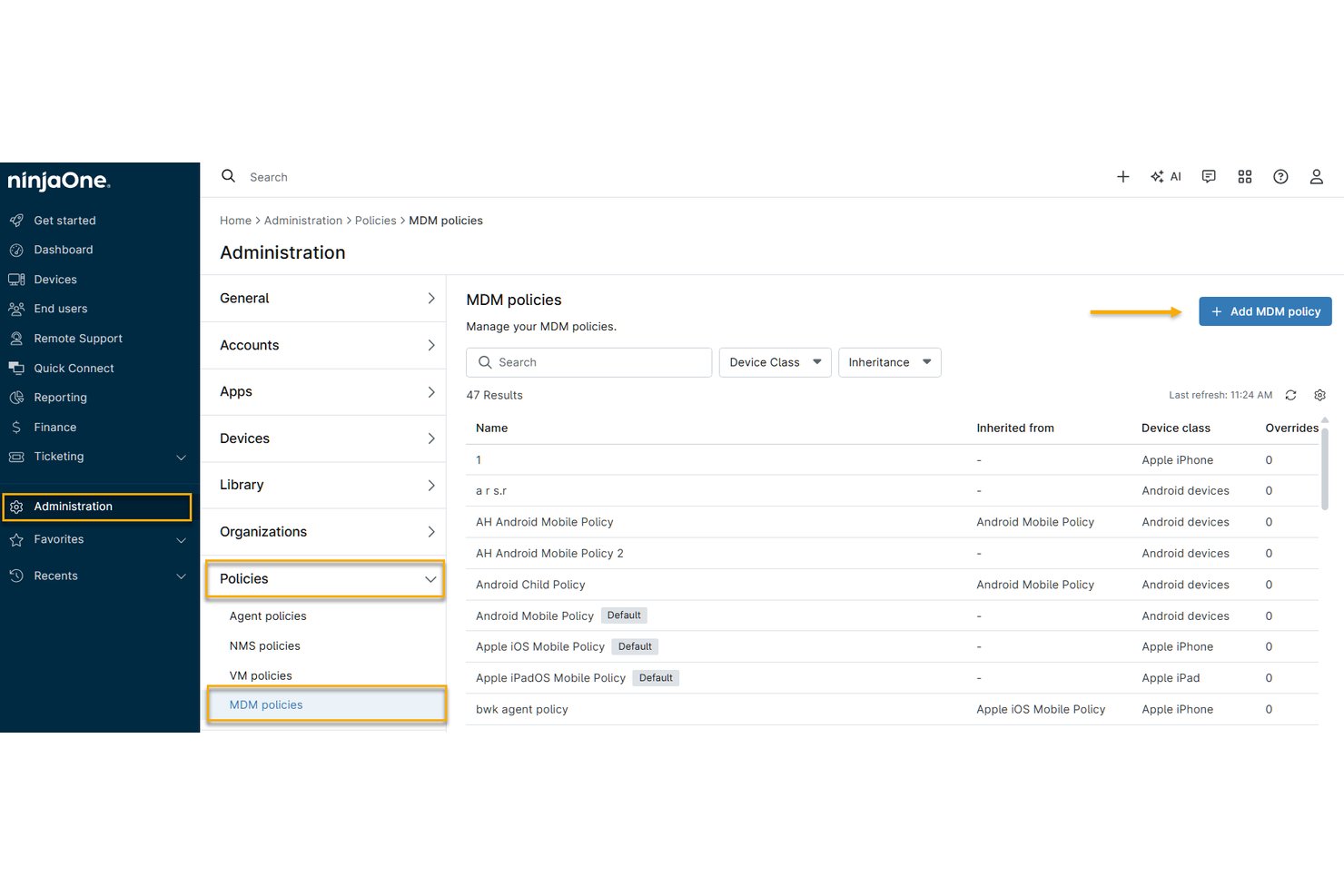
Policy and configuration management lets you define device settings once and push them to every enrolled device. You build profiles for passcode rules, encryption, Wi-Fi, VPN, certificates, and app restrictions. The MDM server applies them over the air and reports which devices comply.
In my experience, group-based assignment matters most. You can target policies by role, platform, or ownership type, so BYOD phones and company laptops get different rules.
Look for drift detection that reapplies settings when users change them. It cuts down on manual fixes and audit surprises.
Policy types behave differently once they reach a device, so plan each one around how it's enforced and who it affects. Use this breakdown to match common policy types to the scenarios where they matter:
| Policy type | What it controls | Real-world scenario |
|---|---|---|
| Policy typePasscode and encryption | What it controlsComplexity, lock timeout, FileVault or BitLocker | Real-world scenarioMeeting audit requirements on laptops |
| Policy typeNetwork and VPN | What it controlsWi-Fi, certificates, per-app VPN | Real-world scenarioSecuring office access for remote staff |
| Policy typeApp restrictions | What it controlsAllowed apps, managed app configuration | Real-world scenarioLocking kiosk iPads in retail with Jamf Pro |
| Policy typeCompliance rules | What it controlsOS version, jailbreak status | Real-world scenarioBlocking outdated phones with Microsoft Intune |
I'd test each policy on a pilot group first. A bad passcode rule can lock out hundreds of users.
3. Application Management
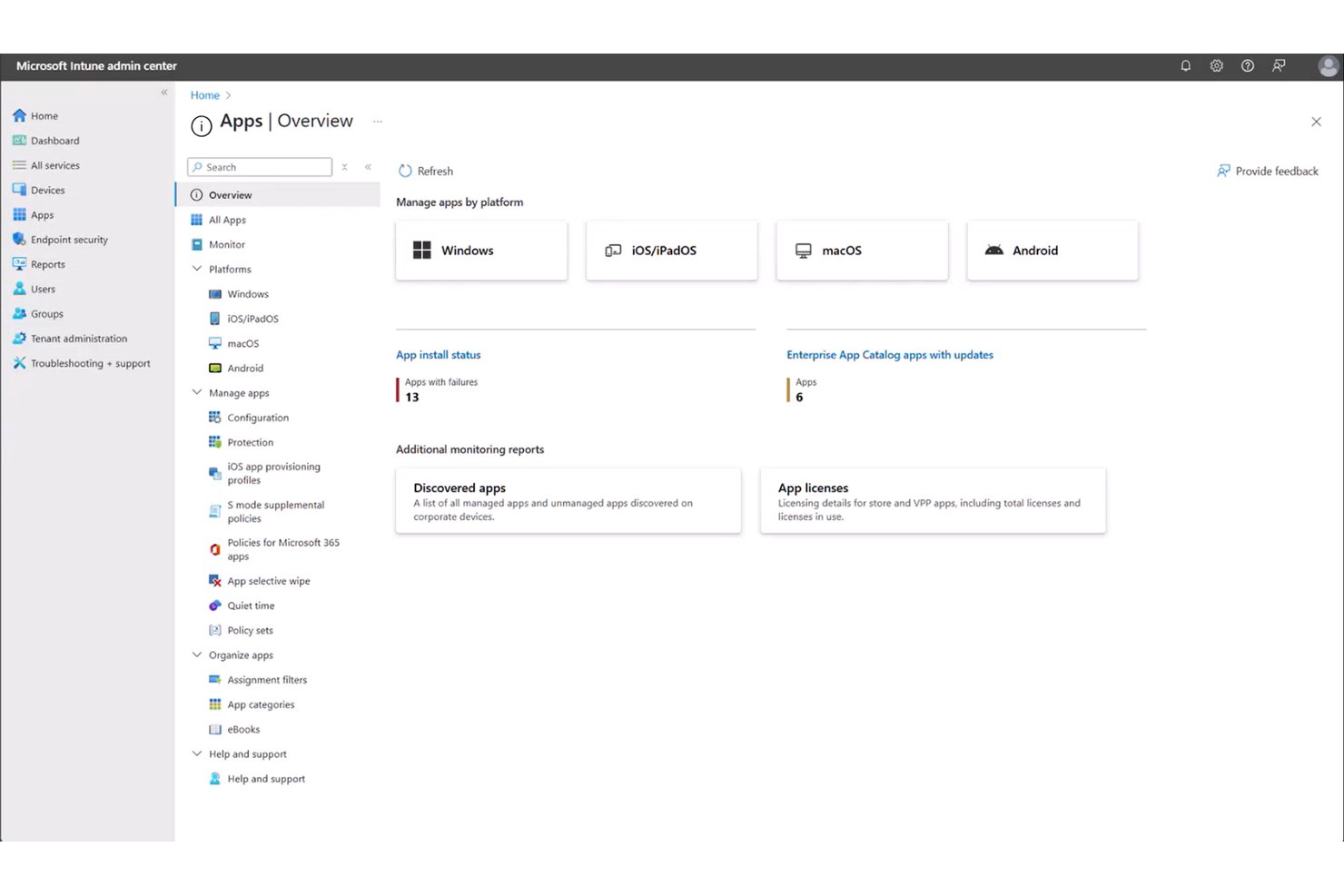
Application management lets you deploy, update, and remove apps on enrolled devices from your MDM console. You assign apps from a catalog, such as Apple Business Manager's Apps and Books or Managed Google Play. You can also push custom packages, and the server installs them silently.
In my experience, managed app configuration and app blocklists matter most. You preconfigure settings like server URLs and sign-in details, and you block risky apps on company devices.
Look for per-app VPN and data-sharing controls. They keep work data inside approved apps on BYOD phones.
Deployment methods behave differently depending on device ownership and platform, so match each app source to the scenario it fits:
| App source | How it deploys | Real-world scenario |
|---|---|---|
| App sourceApps and Books (Apple Business Manager) | How it deploysLicenses assigned to devices or users | Real-world scenarioPushing a sales app to company iPhones |
| App sourceManaged Google Play | How it deploysApproved app catalog with silent install | Real-world scenarioLocking down warehouse Android scanners |
| App sourceCustom packages (MSI, PKG) | How it deploysUploaded and installed silently | Real-world scenarioDeploying an internal tool with Microsoft Intune |
| App sourcePublic store apps | How it deploysOptional install from a self-service portal | Real-world scenarioOffering Slack on BYOD phones with Jamf Pro |
I'd pilot each deployment type before rolling it out. A bad app update can break a workflow for your whole fleet.
Have an account? Log In
4. Remote Lock and Wipe
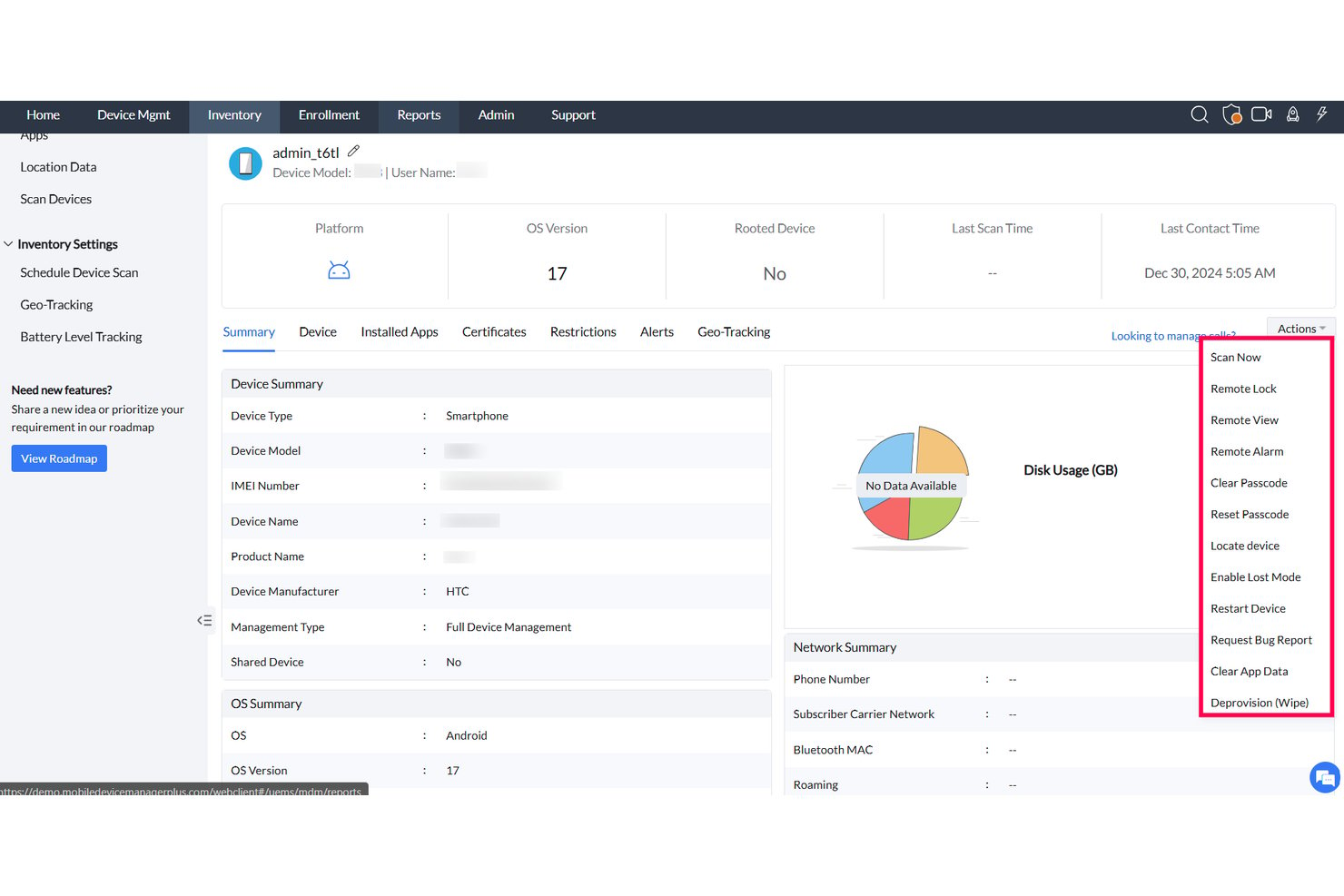
Remote lock and wipe lets you secure a lost or stolen device from your MDM console. Lock freezes the screen behind a passcode, and wipe erases the device. The command reaches the device the next time it connects.
In my experience, selective wipe matters most. It removes only work apps and data from BYOD phones, so personal photos stay put. Full wipe suits company-owned devices.
Look for lost mode with location tracking, such as Apple's Lost Mode in Jamf Pro. Also confirm the console logs each wipe for audit records.
Each remote command behaves differently depending on ownership and connectivity, so match the action to the situation before you send it:
| Command | What it does | Real-world scenario |
|---|---|---|
| CommandRemote lock | What it doesLocks screen, sets new passcode | Real-world scenarioEmployee misplaces a phone at the office |
| CommandLost mode | What it doesLocks device, shows contact message, reports location | Real-world scenarioMissing company iPad tracked with Jamf Pro |
| CommandSelective wipe | What it doesRemoves work apps and data only | Real-world scenarioDeparting contractor on a BYOD phone |
| CommandFull wipe | What it doesRestores device to factory settings | Real-world scenarioStolen laptop managed in Microsoft Intune |
I'd confirm your wipe permissions are limited to a few admins. One mistaken command can erase a user's device.
5. Security and Compliance Enforcement
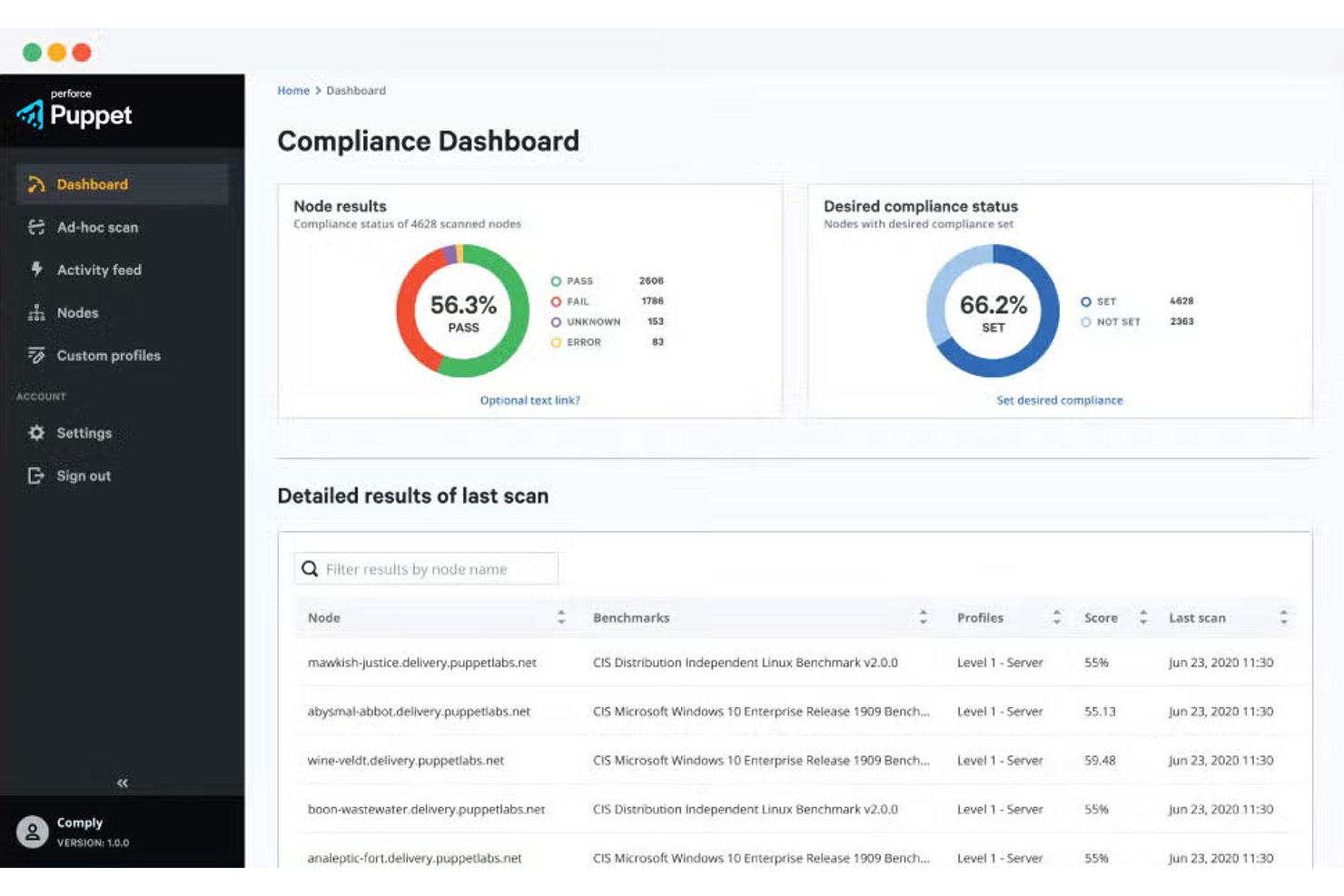
Security and compliance enforcement checks each device against your rules and acts when it falls short. The MDM server reads signals like OS version, encryption status, and jailbreak or root detection. It then flags the device, blocks access, or starts a fix.
In my experience, conditional access matters most. Microsoft Intune can block email on a noncompliant laptop until the user patches it. Jamf Pro can do the same through its integrations.
Look for compliance reports mapped to frameworks like ISO 27001 or CIS benchmarks. They give auditors evidence without manual exports.
Compliance signals trigger different responses depending on severity, so plan your escalation path before you turn enforcement on. Use this breakdown to match each signal to an action and a real scenario:
| Signal | Typical action | Real-world scenario |
|---|---|---|
| SignalOutdated OS version | Typical actionGrace period, then block access | Real-world scenarioMicrosoft Intune blocks email on unpatched laptops |
| SignalEncryption disabled | Typical actionAlert admin, push FileVault or BitLocker | Real-world scenarioAuditor flags an unencrypted MacBook |
| SignalJailbreak or root detected | Typical actionQuarantine or selective wipe | Real-world scenarioCompromised BYOD phone in Jamf Pro |
| SignalMissing security agent | Typical actionReinstall app, then restrict access | Real-world scenarioEndpoint agent removed by a user |
I'd set grace periods for low-risk signals. Immediate blocks work best for jailbroken devices.
6. Containerization and Data Separation
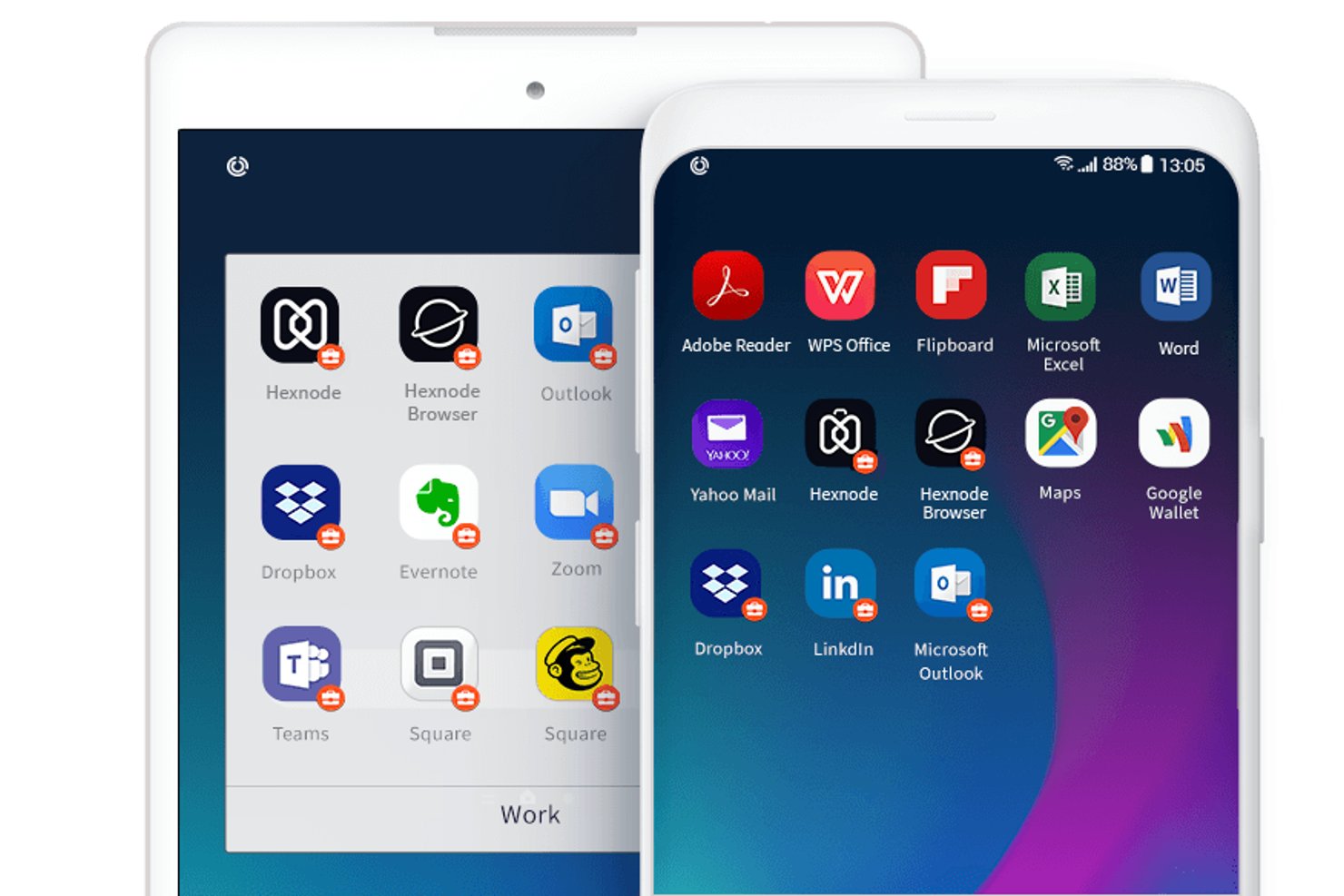
Containerization and data separation keep work data separate from personal data on the same device. MDM tools can enforce this separation through Android Enterprise work profiles, Apple User Enrollment, and managed application controls.
In my experience, this matters most on BYOD phones. You control work apps, copy-and-paste rules, and data sharing, while personal photos and messages stay private.
Look for selective wipe and managed open-in controls. They let you remove corporate data without touching the personal side, which helps when employees push back on enrollment.
Containerization methods differ by platform and ownership model, so match the separation approach to the devices your team supports:
| Separation approach | What it separates | Real-world scenario |
| Android work profile | Work apps, data, and notifications | BYOD phones managed in Microsoft Intune |
| Apple User Enrollment | Managed work apps and data from personal information | Personal iPhones enrolled through Jamf Pro |
| Managed open-in controls | Data sharing between managed and unmanaged apps | Blocking work attachments from personal apps |
| Company-owned device with work profile | Work and personal apps and data on company-owned Android devices | Company Android phones that allow limited personal use |
I'd explain to employees what you can and can't see before they enroll.
7. Content and Document Management
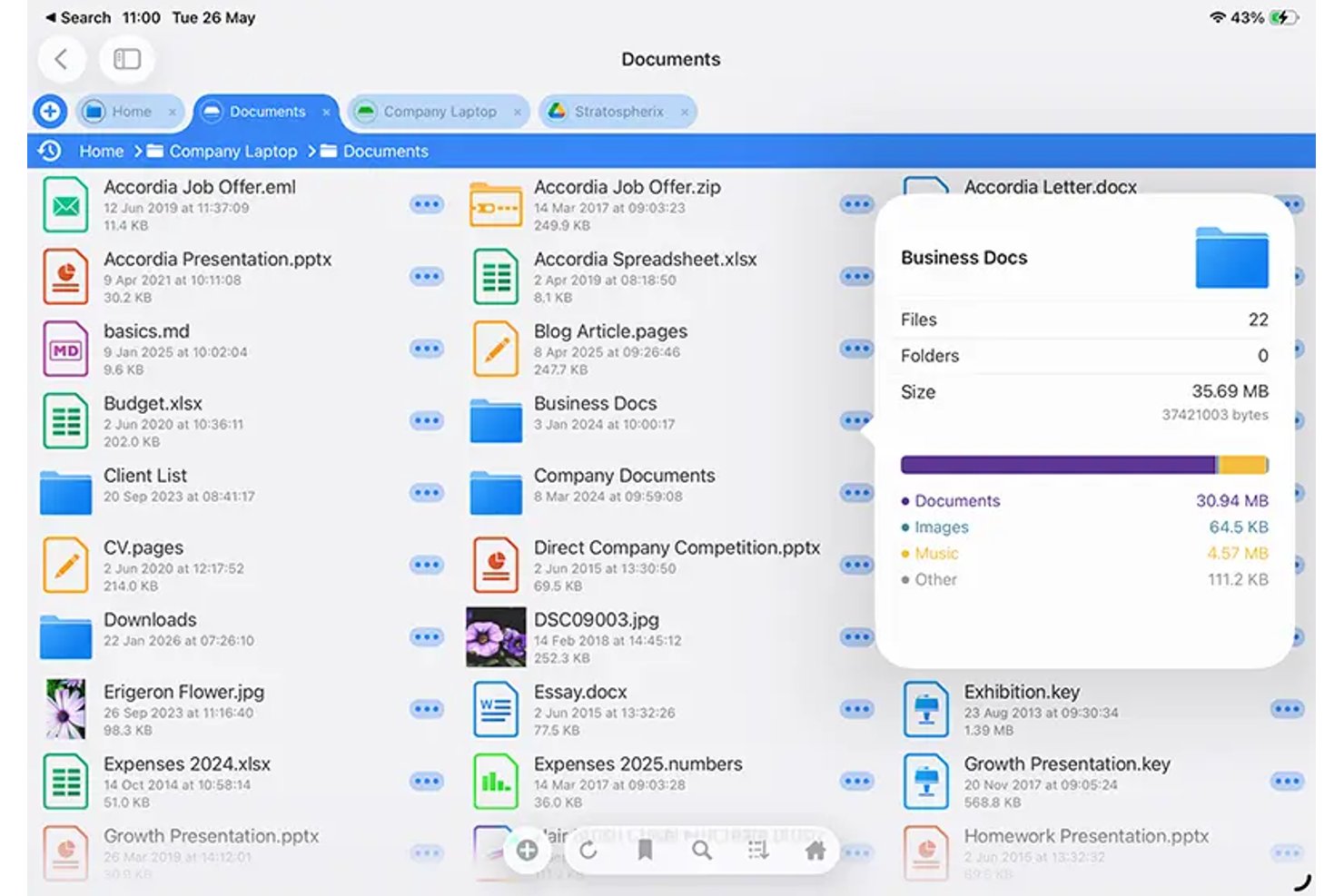
Content and document management helps IT teams distribute company files and control how employees access, share, and store them. Depending on the MDM platform, these capabilities may rely on managed apps, secure content repositories, or integrations with document management services.
In my experience, access controls matter most. Features such as document expiration, copy-and-paste restrictions, and managed open-in controls can help protect sensitive files.
Microsoft Intune and Jamf Pro support certain data-sharing restrictions, although the available controls depend on the platform and applications used.
Look for secure document distribution, version control, and remote access revocation. These data protection capabilities are especially useful in bring your own device (BYOD) environments, where employees access corporate files on personal phones.
Advanced controls may require additional content management tools. Content controls vary by platform and integration, so match each capability to your organization's requirements:
| Control | What it does | Real-world scenario |
| Expiration dates | Limits document access after a specified period when supported | Time-sensitive pricing sheets shared through a secure content management app |
| Managed open-in | Restricts which apps can open managed documents | Keeping contracts within approved apps on Jamf-managed iPads |
| Copy-and-paste restrictions | Limits data transfers between managed and unmanaged apps | Protecting HR documents using Microsoft Intune app protection policies |
| Remote access revocation | Removes or restricts access to corporate content through supported apps or services | Revoking access to confidential documents after an employee leaves |
I'd test expiration dates on a small group first. Files that vanish mid-shift frustrate field staff.
8. Remote Troubleshooting and Support
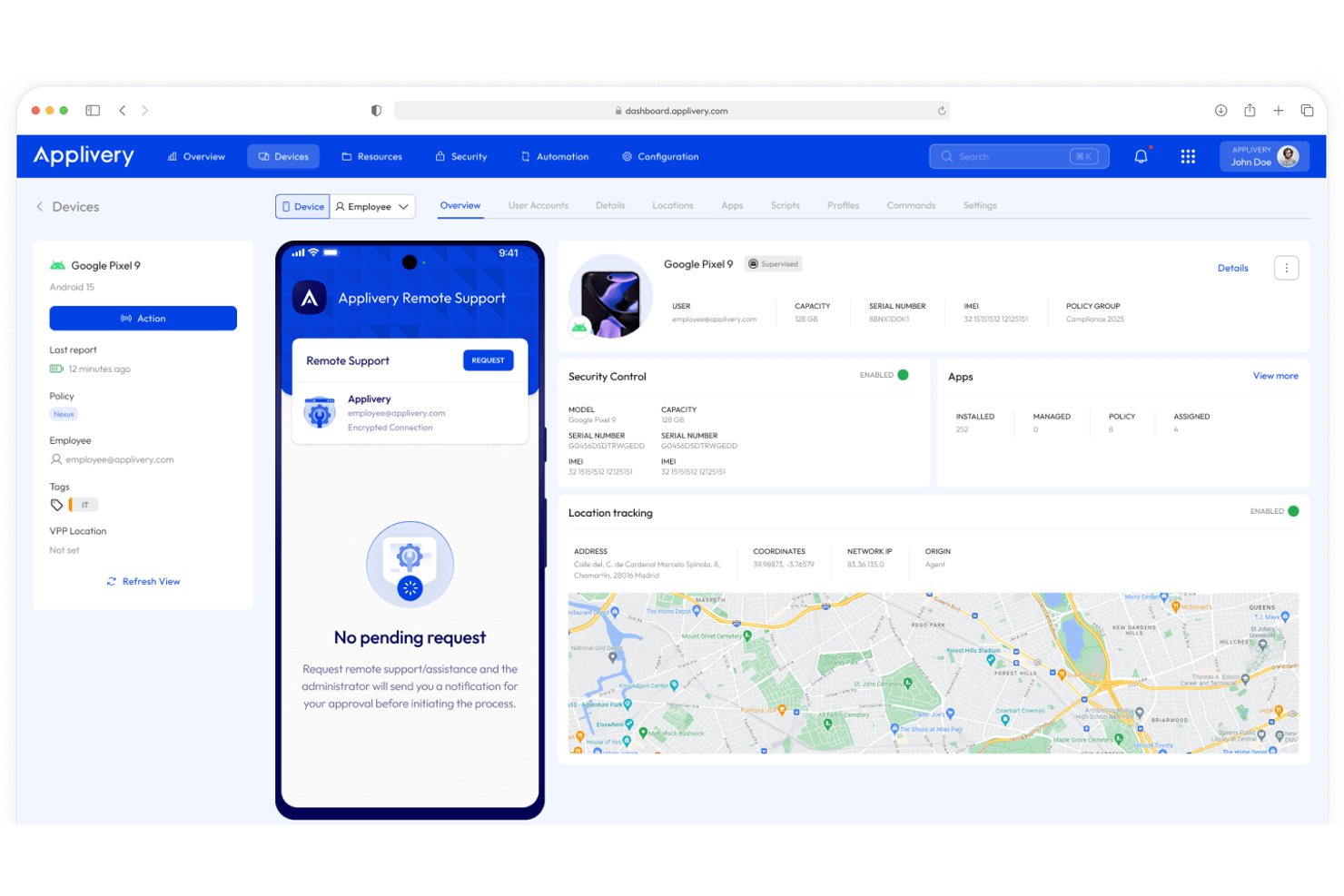
Remote troubleshooting and support lets IT teams diagnose and fix devices without physically accessing them. Depending on the platform, MDM tools and unified endpoint management solutions can provide device diagnostics, configuration commands, and remote support sessions with user approval when required.
In my experience, remote view and screen control matter most. Jamf Pro and Microsoft Intune both support remote help sessions, which cut down on trips to a user's desk.
However, these capabilities vary by device and licensing. Jamf Remote Assist supports managed Macs, while Microsoft Intune Remote Help requires additional licensing and offers different capabilities for supported Windows, macOS, and Android devices.
Look for device diagnostics and command history. They show what you sent and when, so you can trace a problem quickly.
Remote support tools solve different problems depending on how much access you need and whether the user is present:
| Tool | What it does | Real-world scenario |
| Remote view | Shows the user's screen with appropriate permissions | Walking a new hire through email setup on a Jamf-managed Mac |
| Screen control | Lets an authorized technician interact with a supported device | Fixing a VPN configuration on a Windows laptop using Microsoft Intune Remote Help |
| Device logs | Provides diagnostic information | Tracing a failed app installation |
| Command history | Lists management commands and their status | Checking whether a restart command reached a field tablet |
I'd start with logs and command history before opening a session. They often answer the question without interrupting the user.
9. Inventory and Asset Tracking
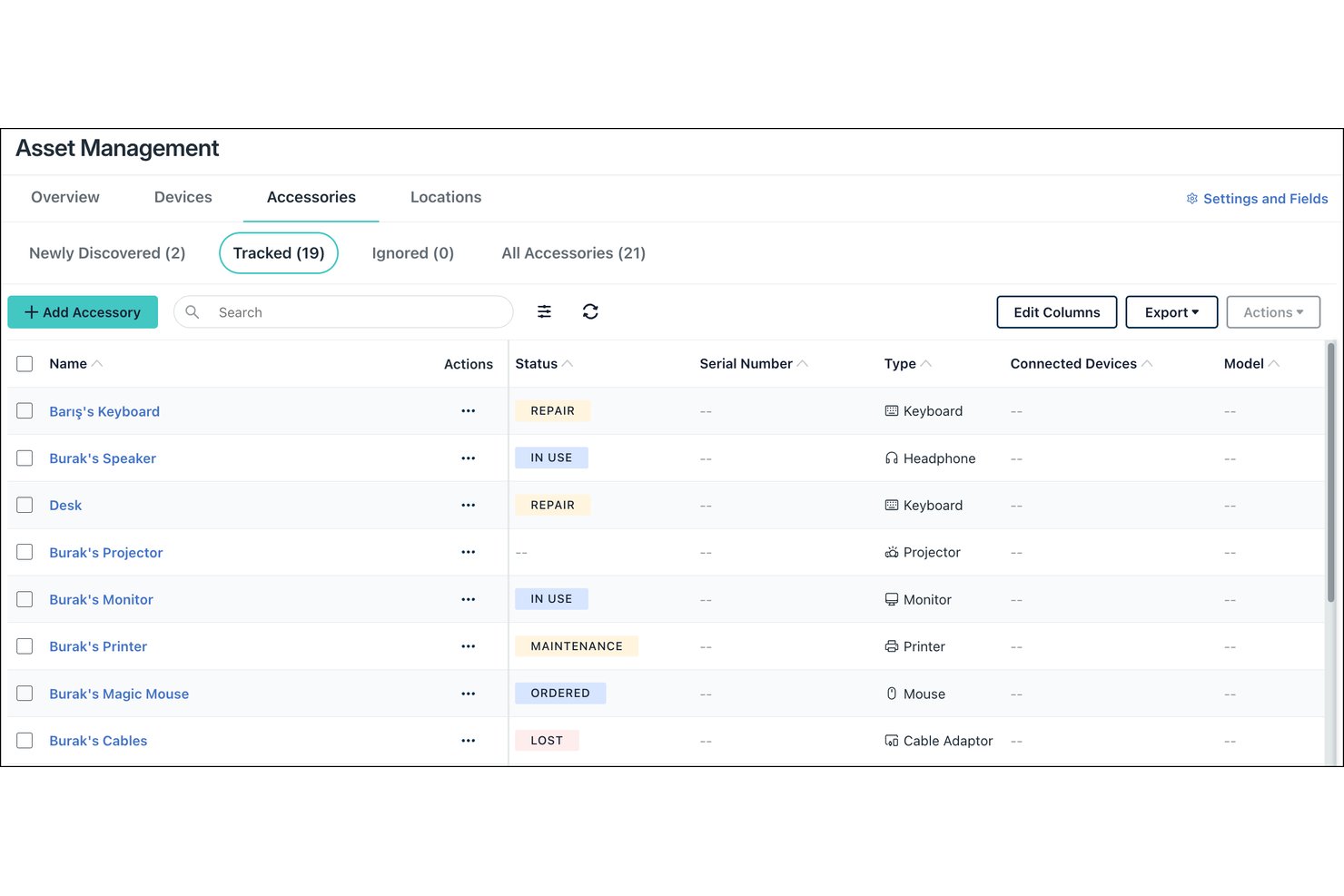
Inventory and asset tracking gives you a live record of every enrolled device. The MDM agent reports hardware model, serial number, OS version, installed apps, storage, and last check-in time to the console.
In my experience, app and hardware inventory matter most. Jamf Pro and Microsoft Intune both let you filter devices by OS version or installed software, so you can find unpatched machines quickly.
Look for custom fields, assignment history, and exportable reports. They link each device to a user, a warranty date, and a lifecycle stage.
Inventory data answers different questions depending on the field you filter by, so match each data point to the decision it supports:
| Data point | What it shows | Real-world scenario |
|---|---|---|
| Data pointOS version | What it showsPatch level per device | Real-world scenarioFinding unpatched laptops in Microsoft Intune |
| Data pointInstalled apps | What it showsSoftware on each device | Real-world scenarioLocating unapproved apps on iPads in Jamf Pro |
| Data pointLast check-in time | What it showsDevice activity | Real-world scenarioSpotting a tablet offline for 30 days |
| Data pointWarranty date | What it showsLifecycle stage | Real-world scenarioPlanning laptop refreshes before coverage ends |
I'd schedule an exportable report for last check-in time. Stale devices often point to lost or retired hardware.
10. Location Tracking and Geofencing
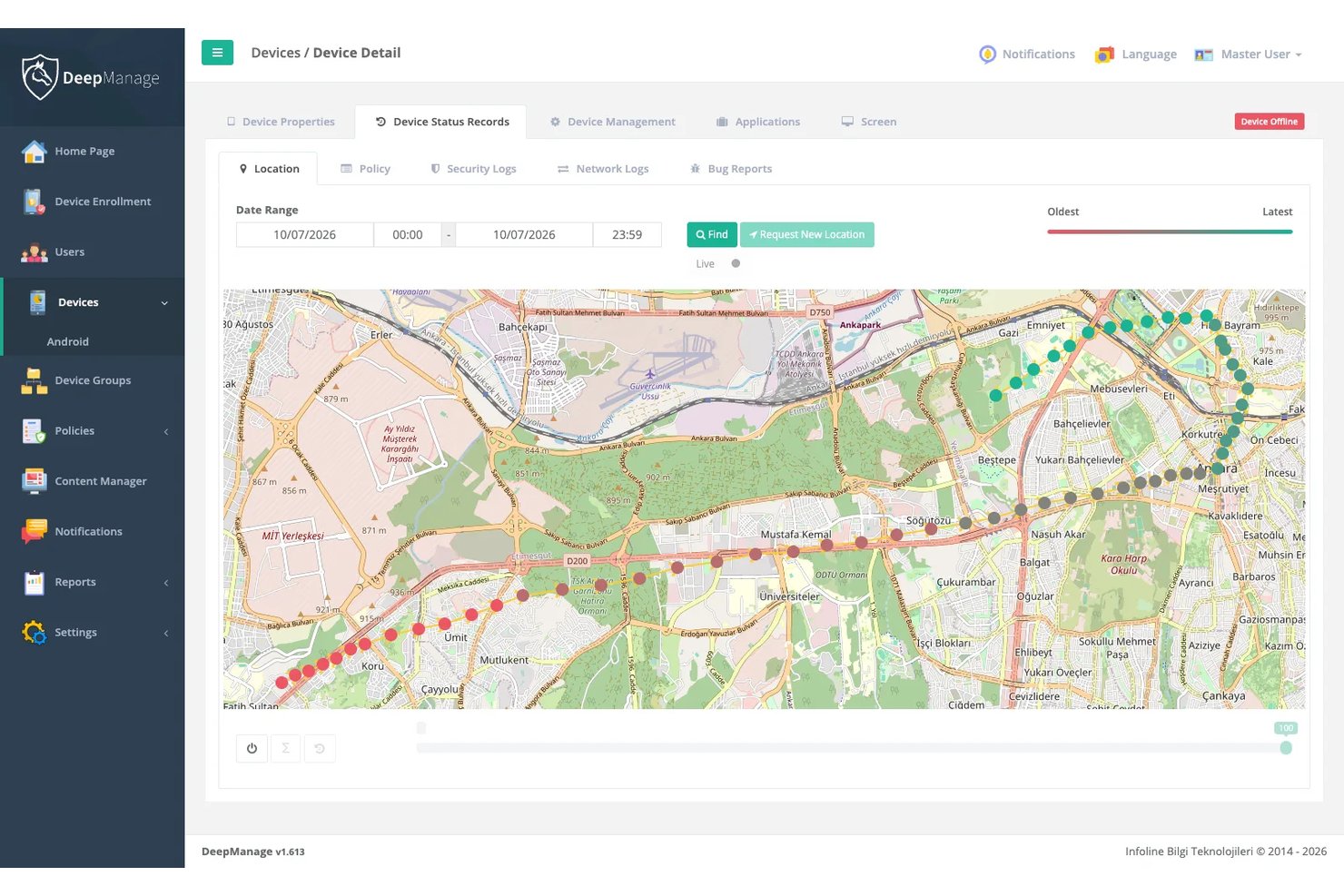
Location tracking helps IT teams locate lost or misplaced devices. Some MDM solutions also offer geofencing, which triggers alerts when devices enter or leave defined areas. However, these capabilities vary by platform, device ownership, and software provider.
In my experience, geofencing matters most for shared and field devices. Jamf Pro supports location requests through Lost Mode on supervised iPhones and iPads, while Microsoft Intune offers location actions for supported managed devices.
Look for on-demand location requests, Lost Mode, and privacy controls. Confirm whether geofencing and location history are supported before choosing a platform, especially if you're managing BYOD devices.
Location capabilities serve different purposes depending on your devices and security requirements:
| Feature | What it does | Real-world scenario |
| On-demand location | Shows the approximate location of supported devices | Finding a company-owned Android tablet with Microsoft Intune |
| Lost Mode | Locks supported devices and helps administrators locate them | Recovering a misplaced supervised iPad using Jamf Pro |
| Last-known location | Shows a previously reported location on supported devices | Locating an offline Android dedicated device using Intune |
| Geofencing (where supported) | Triggers alerts when devices cross defined boundaries | Monitoring company-owned field devices when they leave designated areas |
I'd keep location history off for BYOD phones. Collect only what your policy justifies.
11. Identity and Access Management
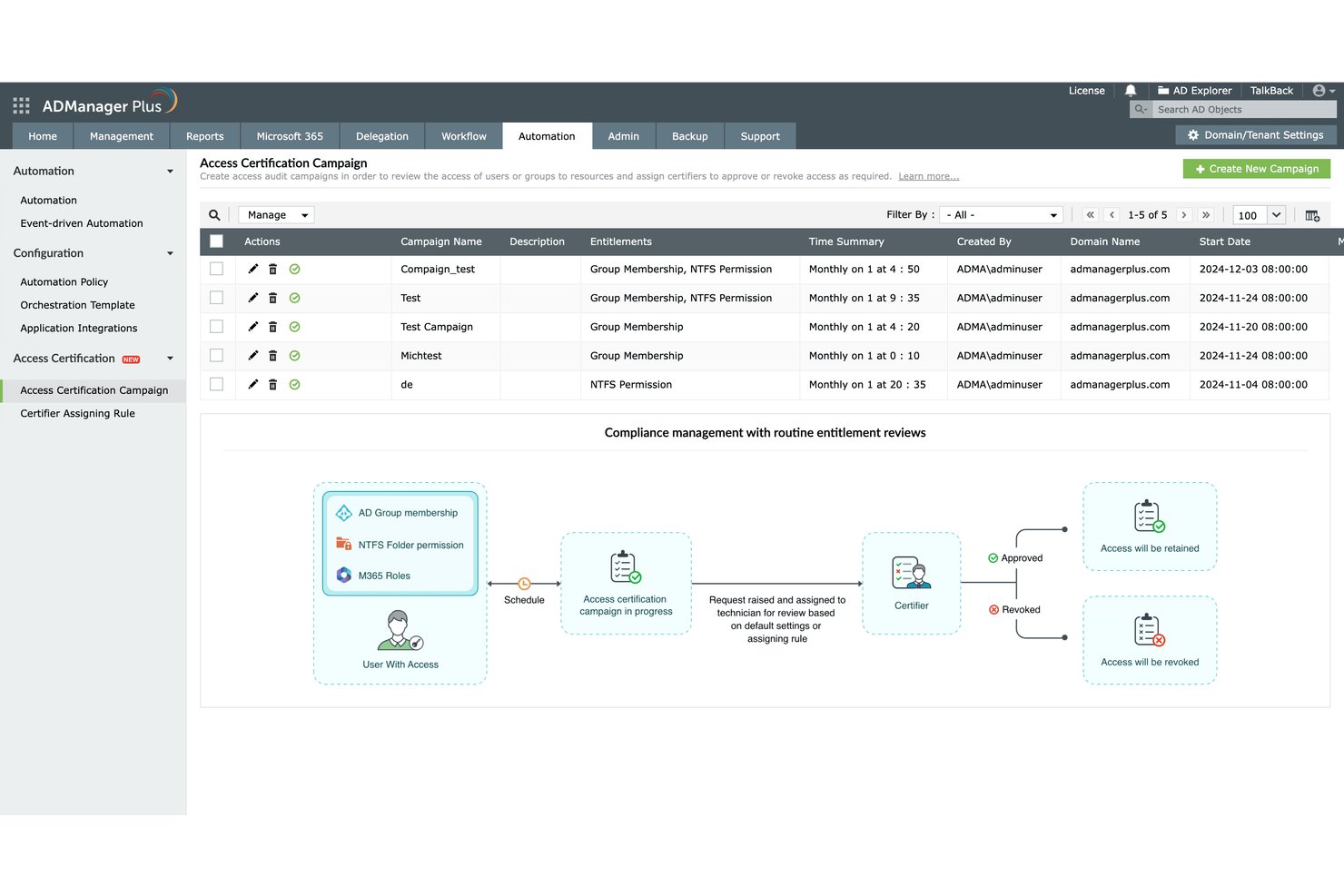
Identity and access management ties each enrolled device to a verified user and controls which company resources that device can reach. The MDM server connects to a directory such as Microsoft Entra ID or Okta, then checks identity and device status before it grants access.
In my experience, conditional access and single sign-on matter most. Microsoft Intune and Jamf Pro both block email or apps when a device falls out of compliance.
Look for certificate deployment and multifactor authentication support. They let you replace shared passwords with device-based credentials and tie access to group membership.
Identity controls work at different points in the access chain, so match each one to the risk you're closing:
| Control | What it does | Real-world scenario |
|---|---|---|
| ControlConditional access | What it doesBlocks access on failed compliance checks | Real-world scenarioStopping email on a jailbroken iPhone in Microsoft Intune |
| ControlSingle sign-on | What it doesSigns users in with one directory identity | Real-world scenarioOpening apps with Okta credentials on Jamf Pro Macs |
| ControlCertificate deployment | What it doesPushes device-based credentials | Real-world scenarioReplacing Wi-Fi passwords with certificates |
| ControlMultifactor authentication | What it doesAdds a second verification step | Real-world scenarioRequiring a prompt before VPN access |
I'd roll out conditional access in report-only mode first. It shows who you'd lock out before you do it.
12. Kiosk Mode and Dedicated Device Management
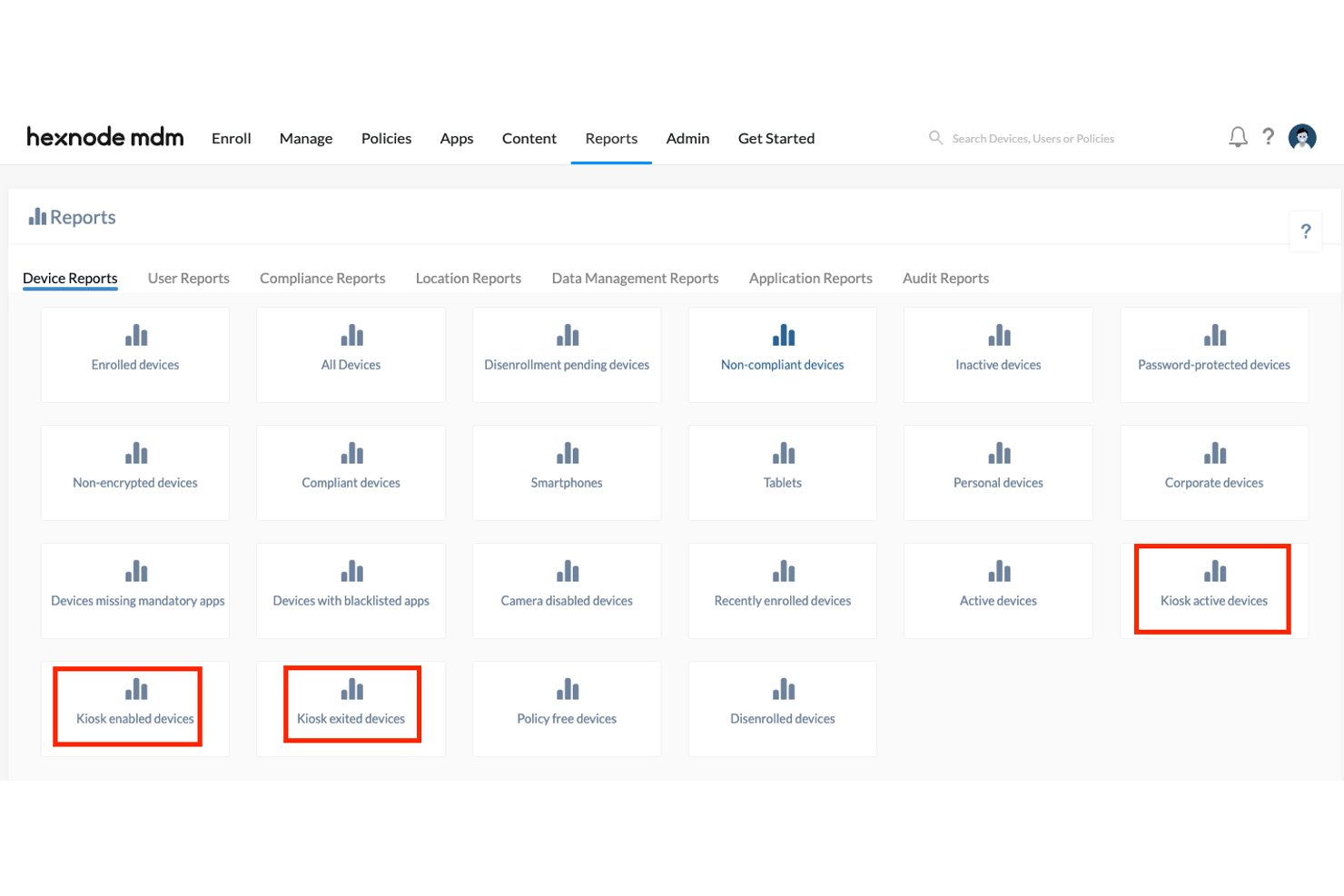
Kiosk mode locks an enrolled device to one app or a small set of approved apps. The MDM server pushes a restriction profile, hides the home screen and settings, and keeps the device in that state until you change it.
In my experience, single-app mode and exit controls matter most. Jamf Pro and Microsoft Intune both support kiosk configurations on supervised iOS and iPadOS devices and on dedicated Android devices.
Look for scheduled app restarts, custom wallpaper, and passcode-protected exit. They keep a check-in tablet or point-of-sale display running the right app without staff intervention.
Kiosk controls fit different devices and risks, so match each one to the screen your users actually see:
| Control | What it does | Real-world scenario |
|---|---|---|
| ControlSingle-app mode | What it doesLocks the device to one app | Real-world scenarioCheck-in tablet at a clinic using Jamf Pro |
| ControlMulti-app mode | What it doesLimits the device to approved apps | Real-world scenarioHandheld scanners in a warehouse using Microsoft Intune |
| ControlPasscode-protected exit | What it doesRequires a code to leave kiosk mode | Real-world scenarioLetting a technician service a point-of-sale display |
| ControlScheduled app restarts | What it doesRelaunches the app on a timer | Real-world scenarioResetting a lobby display overnight |
I'd test exit passcodes before deployment. A forgotten code can mean a site visit.
13. OS Update and Patch Management
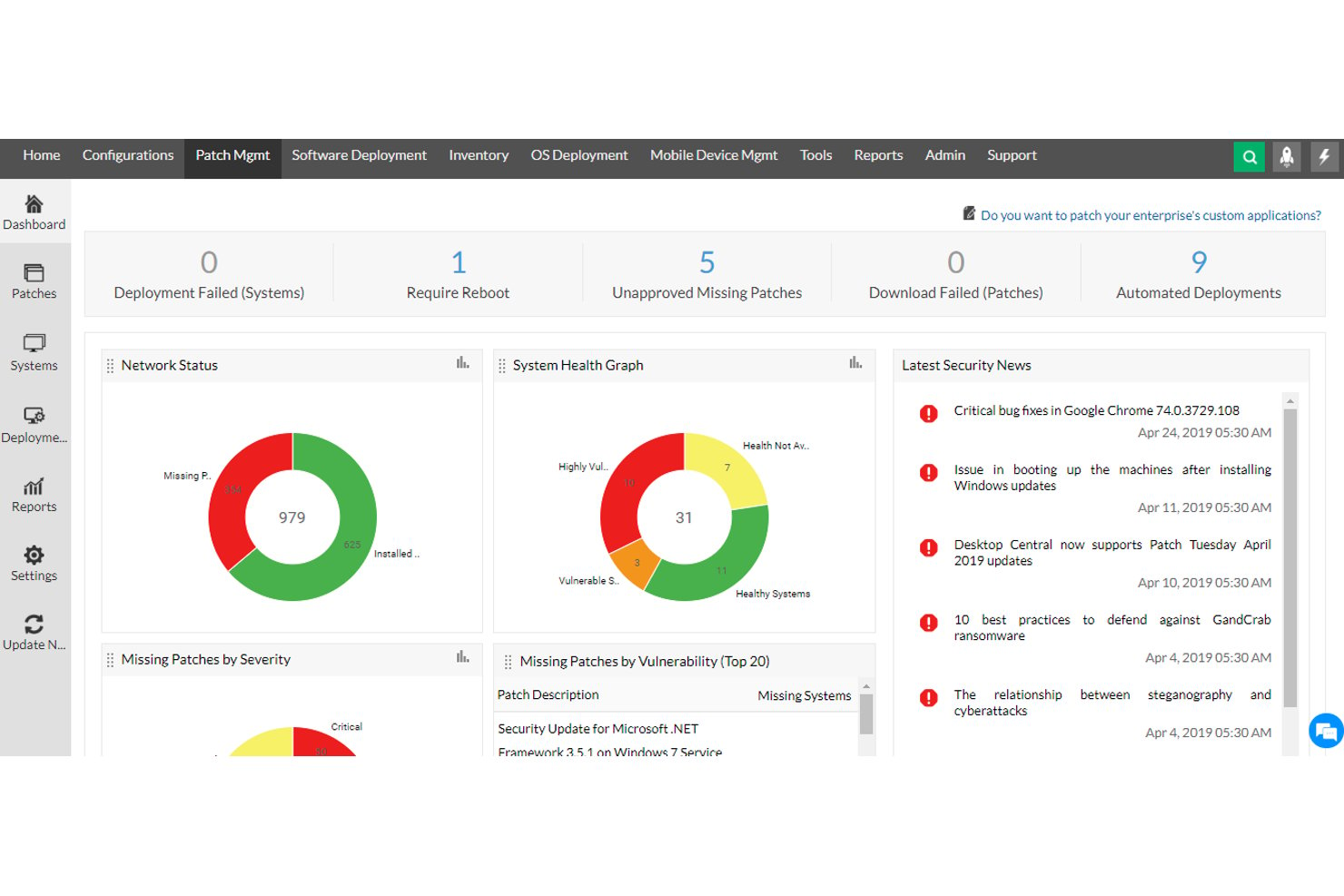
OS update and patch management lets you control when and how enrolled devices install operating system updates. The MDM server sends update commands or policies, and each device downloads and installs the update on the schedule you set.
In my experience, deferral windows and enforced deadlines matter most. Jamf Pro and Microsoft Intune both let you delay major releases for testing, then require installation by a set date.
Look for update rings, version reporting, and maintenance windows. They show which devices lag behind and keep restarts out of working hours.
Update controls work at different stages of a patch cycle, so match each one to the point where you need to slow down or speed up:
| Control | What it does | Real-world scenario |
|---|---|---|
| ControlDeferral window | What it doesDelays major OS releases | Real-world scenarioHolding macOS upgrades for two weeks in Jamf Pro |
| ControlEnforced deadline | What it doesForces install by a set date | Real-world scenarioRequiring a security update on Windows laptops in Microsoft Intune |
| ControlUpdate ring | What it doesStages rollout by group | Real-world scenarioSending updates to an IT pilot group first |
| ControlMaintenance window | What it doesLimits restarts to set hours | Real-world scenarioKeeping kiosk reboots overnight |
I'd always pilot updates with a small ring first. One bad release can break a line-of-business app on every device.
14. Reporting and Analytics
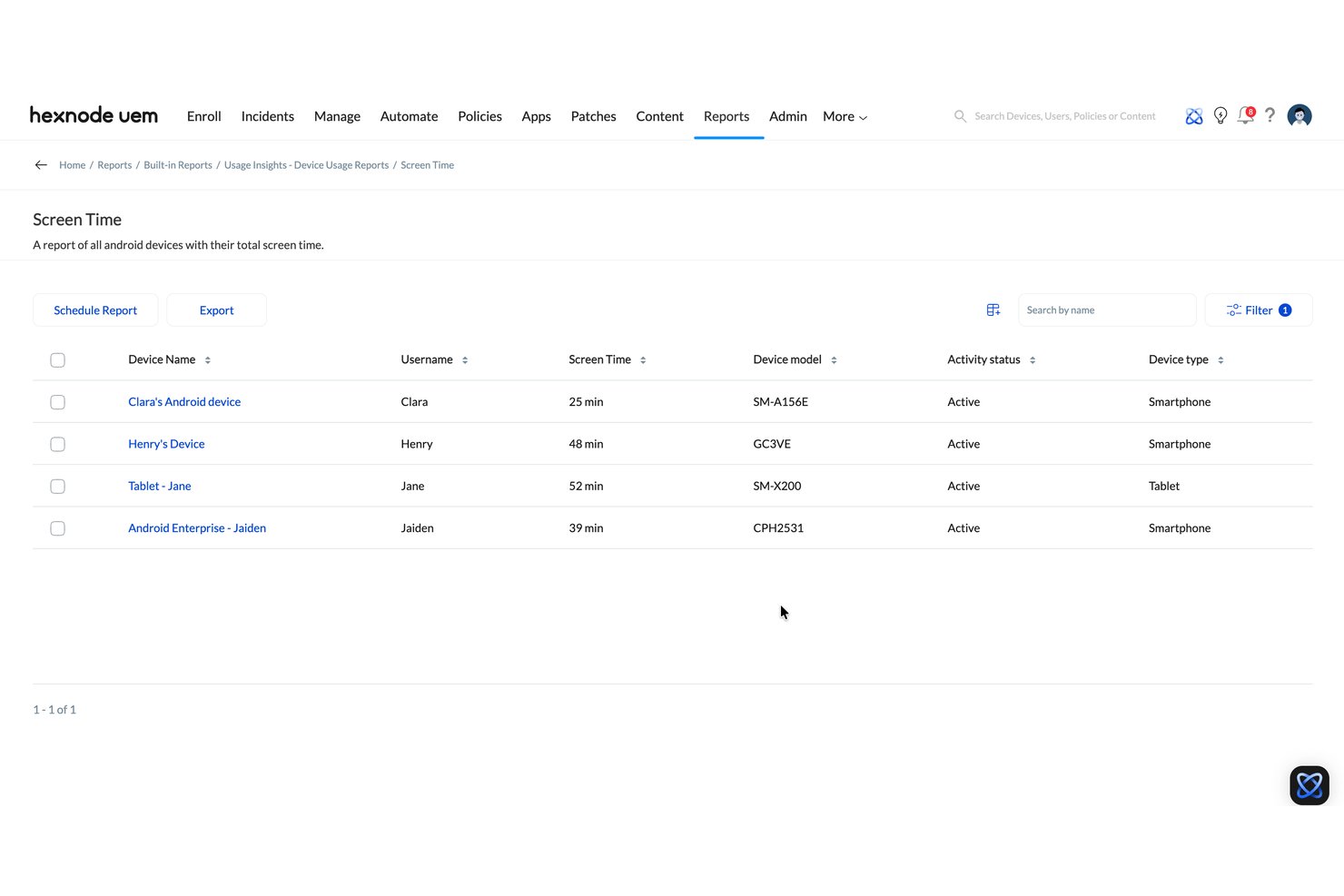
Reporting and analytics turns MDM data into dashboards and scheduled reports. The console pulls check-in data, compliance status, app inventory, and patch levels from every enrolled device, then lets you filter and chart it.
In my experience, compliance dashboards and scheduled exports matter most. Microsoft Intune and Jamf Pro both offer built-in reports, and each can send data to external tools through APIs.
Look for custom report builders and audit logs. They help you show auditors which devices passed or failed a policy, and they flag trends before they become incidents.
Reports answer different questions depending on who's asking, so match each one to the audience that needs it. This breakdown shows where each fits:
| Report type | What it shows | Real-world scenario |
|---|---|---|
| Report typeCompliance dashboard | What it showsPass or fail per policy | Real-world scenarioShowing auditors which laptops met encryption rules in Microsoft Intune |
| Report typeScheduled export | What it showsRecurring data snapshots | Real-world scenarioEmailing a weekly patch report from Jamf Pro to managers |
| Report typeCustom report | What it showsFiltered, chosen fields | Real-world scenarioListing iPads missing a required app |
| Report typeAudit log | What it showsAdmin actions over time | Real-world scenarioTracing who changed a restriction profile |
I'd schedule the compliance export monthly. Auditors usually ask for history, not a single snapshot.
More Articles
15. Network and Email Configuration
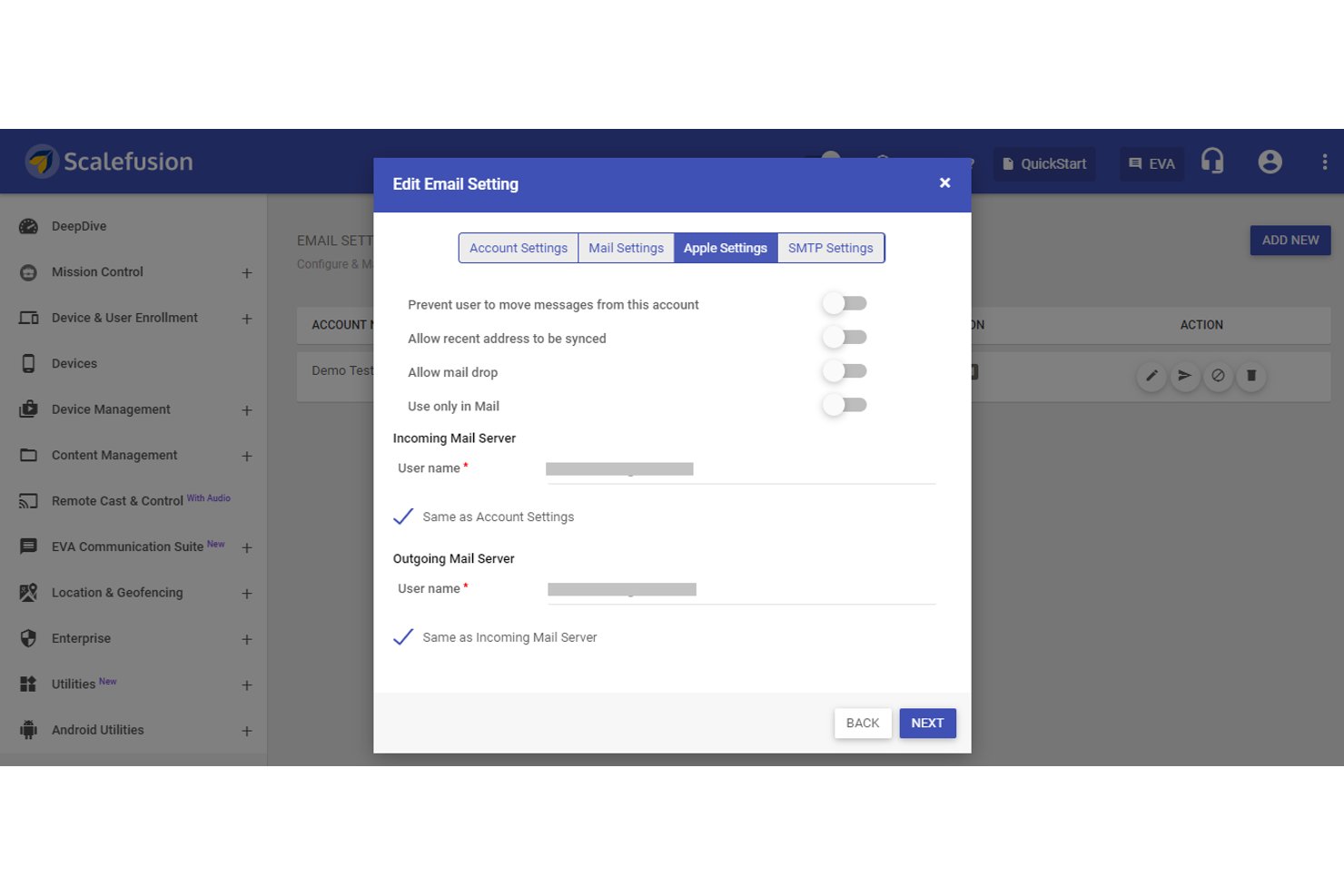
Network and email configuration lets you push Wi-Fi, VPN, and email settings to enrolled devices before users touch them. The MDM server sends configuration profiles, and each device applies them at enrollment or on the next check-in.
In my experience, certificate-based Wi-Fi and managed email profiles matter most. Jamf Pro supports configuration profiles for Apple devices, including iPhones, iPads, and Macs. Microsoft Intune supports Android, iOS/iPadOS, macOS, and Windows, although available Wi-Fi, VPN, and email settings vary by platform.
Look for per-app VPN, proxy settings, and Exchange or Gmail account profiles. They remove manual setup, so users don't type server names or passwords.
Network and email profiles work at different layers of the connection, so match each one to the setting your users would otherwise type by hand:
| Profile | What it does | Real-world scenario |
|---|---|---|
| ProfileCertificate-based Wi-Fi | What it doesAuthenticates devices without shared passwords | Real-world scenarioJoining corporate Wi-Fi on Jamf Pro Macs |
| ProfilePer-app VPN | What it doesRoutes traffic for chosen apps only | Real-world scenarioTunneling a line-of-business app in Microsoft Intune |
| ProfileProxy settings | What it doesDirects web traffic through a gateway | Real-world scenarioApplying content filtering on school iPads |
| ProfileEmail account profile | What it doesConfigures Exchange or Gmail accounts | Real-world scenarioSetting up Outlook on new Android phones |
I'd deploy the certificate profile before the Wi-Fi profile. Wi-Fi fails if the device lacks its certificate.
Top 10 MDM Software
Here are our top picks for the best MDM software to help with your search.
Clicks on the links below may earn a commission, which supports our independent testing and review of software and services. Learn more about how we stay transparent.
Ready to Compare MDM Features in Real Platforms?
Now that you know which mobile device management features matter, see how tools like Microsoft Intune, Jamf Pro, and Hexnode UEM stack up in this roundup of enterprise mobility management software with pricing, trials, and best-fit use cases.